
Business Central Magento

Warehouse manager reviewing real-time fulfillment data for the Magento and Business Central order to cash process.
Business Central, Business Central Magento

Order to Cash Process for Magento and Business Central Merchants

For a Magento store, the order to cash process starts the moment a shopper clicks buy. For the finance team, it ends only when the payment is matched to the right invoice in Business Central. Between those two points sit inventory checks, order syncs, shipments, invoices and bank data, and each one can drift out of step with the others. When the handoffs work, the process is invisible. When they fail, you see it as overselling, orders that never reach the warehouse, invoices that do not match shipments and payments that sit unmatched for weeks.

This article walks through the order to cash process for merchants who run Magento or Adobe Commerce on the storefront and Microsoft Dynamics 365 Business Central as the ERP. We cover each stage in the order it happens, which system should own each step, where syncs usually break and what we check first when a merchant asks why cash is late. If you want the architecture before the workflow, our Business Central Magento integration page explains how the two systems share responsibility. Our Business Central eCommerce integrations overview shows how the same ERP connects to other storefronts. And because stock is the first handoff in the process, our notes on Magento inventory management are worth reading alongside this one.

The short answer

The order to cash process runs from order capture through fulfillment, invoicing, payment and reconciliation. In a Magento and Business Central setup, Magento captures the order and the shopper’s payment intent, Business Central records the sales order, the shipment, the invoice and the cash, and the connector moves the information between them in the right direction. The process stays reliable when each stage has one owner, when status definitions are shared and when partial shipments and partial payments are handled on purpose rather than by accident.

Decisions to make before go-live

Before the first live order flows, four decisions need an owner and a date. Skipping any of them is the most common reason a new connection produces a backlog of exceptions in its first month.

The first decision is who owns each stock number. Business Central should own the physical count, and Magento should display the available quantity. Write that rule down and enforce it, because a team that edits quantities in both systems will eventually see the two disagree.

The second is the status vocabulary. Agree on what processing, shipped, invoiced, complete and closed mean, and on which system is the source of truth for each one. A shared definition takes an hour in a meeting and saves days of customer emails.

The third is the partial shipment policy. Decide whether the business ships in parts, who approves a split shipment and how the invoice follows each part. The answer determines which document type you use on every order.

The fourth is returns. Decide who approves a return, where returned stock goes and when the credit memo is issued. Returns are easy to forget at the start and expensive to untangle later.

Stage one: capturing the order in Magento

The process begins on the storefront, where the shopper selects items, applies discounts, chooses a shipping method and pays. Magento captures the order with its customer, addresses, tax, payment method and line items. At this point, the order is a promise, and the rest of the process exists to keep that promise.

Two decisions made on the storefront shape everything downstream. The first is the customer model. A guest checkout, a registered retail account and a B2B company account each need to land in Business Central as the correct customer record, with the right price group and payment terms. If you leave this to chance, you will spend weeks reconciling duplicate customers. We recommend mapping customer types deliberately before go-live.

The second decision is the order number. The Magento order number should be carried into Business Central as an external reference, so anyone searching either system can find the same transaction. Without it, the finance team and the support team describe the same order in two different languages.

Stage two: sending the sales order to Business Central

Once the order is captured, the connector creates a sales order in Business Central. This is the point where the ERP takes ownership of the financial record. Items, quantities, prices, discounts, tax, shipping method and payment method are mapped from Magento into the corresponding Business Central fields.

Our connector downloads web orders from Magento into Business Central, and it is configured through a settings page that lets you map locations, shipping methods, payment methods, customers, items and discounts without hardcoding them. That matters because the mapping is where most order sync problems begin. A shipping method that exists in Magento but not in Business Central will either stop the order or land it with the wrong charge. Map every method before you turn on live orders, and test each one with a real order. If you are still planning the connection, our steps to connect Magento with Microsoft Dynamics 365 Business Central set out the order of work before any orders flow between the systems.

Check the order at this stage, not later. A sales order that arrives with the wrong customer or the wrong tax is much easier to fix in the first hour than in the last week of the month.

Stage three: checking stock before the promise is kept

Stock is where the order to cash process most often goes wrong, because the storefront and the ERP can disagree about what is available. A shopper may buy a unit that the warehouse has already committed to a phone order, and the order then enters a fulfillment queue that cannot be completed.

The fix is to decide which system owns the physical count, and to send Magento the available quantity rather than the raw on-hand number. Our connector exports real-time inventory levels from Business Central to one or several Magento storefront locations. When open demand is subtracted before the number reaches the storefront, far fewer orders become exceptions that someone has to handle by hand.

Reservations on the Magento side matter here too. When a shopper completes checkout, Magento holds the units against the salable quantity, and the hold clears when the order ships or is canceled. Adobe’s documentation on source algorithms and reservations explains this lifecycle, and it includes a warning worth repeating: on Adobe Commerce Cloud and on-premises projects, the reservation queue consumer has to keep running, or holds never clear and quantities look smaller than they are.

Stage four: shipping and fulfilling the order

Fulfillment happens in Business Central. The warehouse picks, packs and ships the order, and the shipment posts against the sales order. This is where partial shipments enter the picture. A customer who orders twelve units may receive eight today and four next week, and the process has to handle both shipments cleanly.

Microsoft’s guidance on selling products with a customer sales order explains why partial shipments need a sales order rather than a sales invoice. Posting a sales order creates a shipment and an invoice, which can happen together or separately. You can ship a partial quantity by setting the quantity to ship on each line, and the invoice quantity follows from that setting.

Once the shipment posts, the connector sends the shipment and tracking number back to Magento. The customer sees the status change in their account, and the support inbox sees fewer questions about where the order is. Test one partial shipment before go-live. It is the flow where small mapping mistakes become visible to customers first.

Stage five: invoicing what was shipped

The billing step should follow shipments, not orders. Our connector uploads both full and partial order invoices to Magento, which keeps the customer’s account accurate and avoids the most common billing dispute, an invoice for a quantity that never arrived.

Microsoft’s guidance on invoice sales in Business Central makes a point that applies directly here. You must use a sales order rather than a sales invoice when you need to ship only part of an order, when you ship after the invoice is posted, or when a vendor delivers directly to the customer. Choosing the right document type at the start keeps the invoice aligned with what was actually delivered.

Invoice totals deserve a check on the first few orders from each payment method and tax zone. Rounding differences, tax-inclusive prices and discount calculations are easy to verify on a single order and harder to spot in a monthly report. Our connector syncs standard rates, special discounts and complex B2B customer price levels from Business Central, so the totals a shopper sees should match the totals the invoice carries.

Stage six: collecting and matching payments

Payment collection is the stage that closes the order to cash process, and it is where many merchants discover that their systems never quite agreed. Some payments are captured at checkout through a payment method that Business Central records immediately. Others arrive later, through bank transfers or checks, and have to be matched to open invoices.

For immediate payments, the sales invoice closes as fully applied when it posts, as the invoicing rules in Business Central describe. For payments that arrive later, Business Central offers several ways to apply cash, including the cash receipt journal and the payment reconciliation journal. The managing receivables overview describes those options, and the choice depends on how your bank data arrives.

Our advice is to import bank data frequently rather than monthly. Matching is far easier when the payment is still fresh in everyone’s mind. Review the exceptions every day, including short payments, unmatched receipts and payments that arrive without a reference, so they do not pile up at month-end.

Stage seven: keeping order status honest across both systems

Status is the thread that ties the whole order to cash process together. A shopper wants to know whether the order was received, shipped and invoiced. The warehouse wants to know what is still open. Finance wants to know what is paid. If those answers come from different sources, the customer will see one status and the finance team will report another.

Adobe Commerce separates order states, which control how an order moves through the workflow, from order statuses, which communicate progress to people. Its order status definitions state that an order is complete only when it has been created, paid and shipped, and that a closed order has had a credit memo issued and the refund given. Those definitions should match what your team means by complete and closed, or customers will receive messages that do not reflect what happened.

Agree on the status definitions with operations and finance before go-live. Then check that each status change in Business Central produces the right status in Magento, and that a refund or credit memo moves the order to closed rather than leaving it looking open.

Where the process breaks and what we check first

When a merchant asks why cash is late, we work through the process in order, because the cause is almost always upstream of the symptom. In my experience, the cause is rarely the step the merchant points to first. Here is the sequence we use.

Start with the customer. Confirm the Magento order has a matching customer in Business Central, with the right price group and payment terms. A mismatched customer often explains an invoice that looks wrong.

Next, check the order. Confirm the sales order exists in Business Central with the same items, quantities, prices and tax as the Magento order. A missing or altered order explains why a shipment never happened.

Then check the shipment. Confirm the shipment posted, the quantity matches what was picked, and the tracking number reached Magento. A shipment that posted without syncing back to the storefront explains many “where is my order” tickets.

Then check the invoice. Confirm the invoice follows the shipment and carries the correct amount. An invoice for an unshipped quantity explains most billing disputes.

Finally, check the payment. Confirm the payment is recorded, matched to the right invoice and reconciled to the bank. An unmatched payment explains a customer who appears to owe money they have already paid.

Working in this order prevents a common mistake, which is adjusting balances by hand to make a report look right. Fix the cause in the step where it happened, then confirm the downstream records update correctly.

One more check helps when the cause is not obvious. Compare the totals on the Magento order, the Business Central sales order and the invoice, line by line. Differences in tax rounding, discounts or shipping charges look small on a single order and grow large when they repeat across hundreds of orders. A short reconciliation each week catches them while they are still easy to explain.

Returns, refunds and credit memos

Returns belong inside this process, not outside it. A returned item affects revenue, stock and the customer’s balance, and it affects them in the opposite direction from the original sale. Teams that treat returns as exceptions often find that balances drift for months before anyone notices.

In Business Central, a posted sales invoice that the customer has already paid cannot simply be deleted. The correct route is a sales credit memo, which reverses the sale and records the refund against the original entry. Adobe Commerce follows the same principle. An order closes when a credit memo has been issued and the refund has reached the customer, so the storefront status and the ERP record can tell the same story when both are set up correctly.

The practical rule is to keep returns separate from fulfillment. A return is not a shipping problem, and it should not be logged in the same place as one. Give the returns owner the authority to approve a credit, decide whether stock goes back on the shelf and close the matching invoice. When those answers are written down, a return stops being a crisis and becomes a routine step.

Common order to cash mistakes we see

  • Mapping a shipping method or payment method late, after live orders have started flowing.
  • Invoicing from the original order rather than the shipment, which causes disputes over quantities.
  • Letting the storefront and the ERP each edit stock, so the next sync overwrites one of them.
  • Leaving partial payments and short payments without an owner, so they age quietly.
  • Unassigning a source or changing a stock assignment while orders are still open, which can strand quantities.
  • Agreeing on the word “complete” differently in each team, so customers receive the wrong status message.

Measuring the order to cash process

You cannot tighten the process without measuring it, but the measures do not need to be complicated. We track four things for each merchant. Time from order to shipment shows how quickly operations move. Time from shipment to invoice shows whether billing keeps pace. Invoice accuracy, measured as the share of invoices that need correction, shows the quality of the handoff between fulfillment and finance. Time from invoice to payment shows how well cash application and collections work.

Review these monthly against the merchant’s own history. A single slow order is an exception. The same slow step every month is a process problem, and that is the one to fix first.

Reporting that both teams trust

Finance and operations often look at the same process through different reports. Operations watches open orders and unshipped quantities. Finance watches open invoices, aging balances and unapplied cash. The fastest way to end an argument is to give both teams a shared view built on the same order number and the same status definitions.

Build that view around the order, not the document. A single line per order should show whether it was received, shipped, invoiced and paid, with the date of each step. When a manager asks why an order is late, the answer should be visible without opening three systems. Review the view weekly, and keep the list of exceptions short by giving each one an owner and a due date.

Keep the view simple enough that a new team member can read it in five minutes. If it needs a walkthrough every time, people will stop using it, and the arguments will return.

Frequently asked questions

What is the order to cash process?

The order to cash process is the sequence that starts when a customer places an order and ends when the payment is received and matched to the correct invoice. It covers order capture, stock checks, fulfillment, shipping, invoicing, payment collection, cash application and reconciliation. Each stage depends on the accuracy of the stage before it.

How does the order to cash process work with Magento and Business Central?

Magento captures the order and the payment intent. A connector creates a sales order in Business Central, which then records the shipment, the invoice and the cash. Shipments, tracking numbers and invoices flow back to Magento so the customer can see the order status. Each step has one owner, and the connector moves information in the correct direction.

What is the order to cash workflow for a Magento store?

The workflow starts with a Magento order and moves into Business Central as a sales order. Stock is checked against the available quantity, the warehouse ships the order, the shipment posts, the invoice follows the shipment, and the payment is matched to the invoice. Status changes in Business Central update Magento, so the storefront stays consistent with the finance record.

Why does stock matter in the order to cash process?

Stock is the first handoff where the storefront and the ERP can disagree. If Magento shows units that are already committed in Business Central, the order enters a queue that cannot be fulfilled. Sending Magento the available quantity, after open demand is subtracted, prevents many of these exceptions before they reach the warehouse.

When should I use a sales order instead of a sales invoice?

Use a sales order when you need to ship only part of an order, when you ship after the invoice would normally post, or when a vendor delivers directly to the customer. Sales orders create both a shipment and an invoice, and they let you split the quantity across shipments. A sales invoice is simpler when the full order ships at once and no split is needed.

How should partial shipments and partial invoices be handled?

Record each partial shipment against the original sales order, and invoice only the quantity that shipped. The connector should send each shipment and its tracking number back to Magento so the customer sees progress. Test a partial shipment before go-live, because it is the flow where small mapping mistakes become visible to customers.

What is cash application, and why does it matter?

Cash application is the work of matching incoming payments to the invoices they settle. It includes partial payments, short payments and payments that arrive without a reference. Good cash application keeps customer balances accurate and shows exactly which invoices remain open. Importing bank data regularly makes matching much faster.

How do I find out why a customer’s invoice does not match their payment?

Work through the process in order. Check the customer record, the sales order, the shipment, the invoice and then the payment. The first step where the records disagree is usually the cause. Fix the problem in that step rather than adjusting the balance by hand, so the downstream records update correctly.

Do I need software to run the order to cash process?

Not every business does. A small operation with low order volume can run a clean process with clear manual steps. Software becomes valuable when orders arrive from several channels, when invoices must follow partial shipments, or when finance spends too much time matching payments. A connector between Magento and Business Central removes the manual copying between the two systems.

What is the best order to cash software for Magento?

For Magento merchants that use Business Central as their ERP, the right tool is one that maps orders, customers, items, stock, shipments and invoices reliably between the two systems. We would evaluate any option against that test first. The best fit depends on your location setup, your payment methods and how much custom mapping your business requires.

Next steps

If you are planning an order to cash workflow between Magento and Business Central, start with the order of work rather than the software. Decide who owns stock, map customers, shipping methods and payment methods, test a partial shipment and agree on what each status means. Once those decisions are made, the connection becomes a reliable part of the process rather than a source of exceptions. If you want to compare the setup options and plans for your store, the Business Central Magento connector pricing page lays out what is included, and we are happy to walk through the mapping with your own locations, payment methods and products.

Order to Cash Process for Magento and Business Central Merchants Read Post »

Professional dashboard and warehouse showcasing advanced Magento inventory management solutions
Business Central Magento

Magento Inventory Management: A Practical Guide for 2026

Magento inventory management is the set of tools inside Magento 2 (Adobe Commerce and Magento Open Source) that tracks how much stock you have, where it sits, and how much of it customers can buy right now. It covers sources, stocks, salable quantity, stock status, low stock alerts, backorders and bulk updates. When it is set up well, your storefront shows the right numbers and you stop selling things you don’t have.

I’ve spent a lot of time inside Magento admin panels, and the pattern I see most often is simple: the store looks fine until order volume grows, a second warehouse appears, or an ERP enters the picture. Then the numbers drift. This guide walks through how Magento inventory management works natively, where it stops, and how to connect it to an ERP like Microsoft Dynamics 365 Business Central using a Business Central Magento connector so one system owns the truth.

What is Magento inventory management?

Magento inventory management is the native module in Magento 2 that controls product quantities, stock locations and availability on your storefront. It decides whether a product shows as In Stock, how many units a shopper can add to the cart, and which warehouse should ship an order.

The current module supports one location or many, and it separates the physical count in a warehouse from the number you are allowed to sell online. That separation is the part most merchants misunderstand, so I’ll spend some time on it below.

For most growing businesses, purchasing, receiving, returns and accounting live in an ERP. If you run Microsoft’s ERP, the work of a Dynamics 365 Business Central Magento integration is to keep both systems agreeing on stock, orders and prices. If you are still deciding how to set that up, the steps to connect Magento with Microsoft Dynamics 365 Business Central are worth reading before you change any inventory settings.

What is Magento Multi Source Inventory?

Magento Multi Source Inventory (MSI) is the original project name for the Inventory Management module in Magento 2. It lets a single store manage stock across several physical locations, such as warehouses, retail stores, pickup points and drop shippers, and sell from all of them through one storefront.

Adobe now calls it Inventory Management, and most people searching for Magento inventory management mean this module. According to Adobe’s introduction to Inventory Management for Adobe Commerce, the module ships with both Magento Open Source and Adobe Commerce, and all of its features are turned on by default. So if you run Magento 2.3 or later, you already have it, even if you only use one warehouse.

Four terms make the whole system click:

  • Source: a physical location that holds and ships products, like a warehouse or a store.
  • Stock: a group of sources mapped to a sales channel (a website). One stock can serve several websites, but each website can only use one stock.
  • Salable quantity: the number of units you can sell through a channel, added up across every source in that stock, minus reservations and thresholds.
  • Reservation: a temporary hold placed when a customer checks out. When the order ships, the reservation clears and the real quantity is deducted from the specific source.

If you have one location, Magento treats you as a single-source merchant and everything runs through the Default Source and Default Stock. Add a second source and you become a multi-source merchant. Nothing about your store breaks when that happens, but your settings suddenly matter a lot more.

How Magento 2 inventory management works day to day

Magento 2 inventory management follows the order through four stages: cart, checkout, shipment and cancellation. Knowing which number changes at each stage saves hours of confusion.

  1. A shopper adds a product to the cart. Nothing is deducted yet. Magento only checks the salable quantity to confirm the item can be bought.
  2. The shopper completes checkout. Magento creates a reservation. The salable quantity drops right away, but the physical quantity in your source does not change.
  3. You ship the order. The reservation clears, and Magento deducts the shipped units from the source that fulfilled it.
  4. An order is canceled before shipping. The reserved units go back to the salable quantity.

The reason I stress this is that merchants often open the product grid, see a quantity of 40 and a salable quantity of 32, and assume something is broken. It isn’t. Those 8 units are sitting in unshipped orders. In my experience, the first real inventory problem a store hits is not a bug at all. It is someone in the warehouse adjusting the physical quantity to “match” the salable number, which then double counts the open orders.

Magento stock status, explained

Magento stock status is the In Stock or Out of Stock flag that controls whether a product can be bought on the storefront. It is part of Magento inventory management, but it is a separate setting from quantity.

A product can have units on hand and still show Out of Stock if the status is set that way, and the reverse is also possible when backorders are on. For multi-source stores, each source has its own status. A product is sellable on a website if at least one source in that website’s stock is In Stock and has salable units.

A few habits that keep stock status honest:

  • Let Magento manage status automatically based on quantity instead of toggling it by hand.
  • Use the “Display Out of Stock Products” setting deliberately. Showing them helps SEO and lets customers sign up for alerts. Hiding them keeps category pages clean.

How to set up a Magento low stock notification

A Magento low stock notification is an alert that fires when a product’s quantity falls below a number you choose. In the admin, the setting is called Notify for Quantity Below, and you can set it globally, per source or per product.

The global setting lives under Stores, Settings, Configuration, Catalog, Inventory, Product Stock Options. Product-level and source-level values override the global one, which is useful because a fast seller and a slow seller rarely need the same threshold.

There is one detail people miss. When backorders are disabled, Magento subtracts the Notify for Quantity Below value from the salable quantity. So if you have 25 units and set the threshold to 10, your storefront may only allow 15 to be sold. That is fine if you want a safety buffer, but it surprises merchants who expected all 25 to be available.

My practical advice for Magento inventory management: treat the low stock number as a reorder signal, not a buffer, unless you mean it to be one. And remember that Magento only notifies. It does not create a purchase order. Reordering still happens wherever your purchasing lives, which for most growing stores is the ERP.

How Magento backorders work

Magento backorders let you keep selling a product after its quantity reaches zero. The order is accepted, payment is taken, and shipping waits until new stock arrives.

You get three options: No Backorders, Allow Qty Below 0, and Allow Qty Below 0 and Notify Customer. The third one tells shoppers on the product page that the item is on backorder, which I recommend almost every time. Customers handle a delay far better when they were told about it before paying.

The setting that controls how far you can oversell is the Out-of-Stock Threshold. With backorders on, you enter a negative number. Adobe’s guide to configuring Magento backorders gives a clear worked example: with 25 units on hand and a threshold of -50, the salable quantity becomes 75. Enter 0 with backorders on and you allow unlimited backorders, which I would avoid unless you manufacture to order.

When should you use backorders? They make sense for items with reliable restock dates, made-to-order products and B2B buyers who order ahead. They are risky for seasonal goods, discontinued lines or anything with an uncertain supplier. If you allow them, the ERP needs to see those orders quickly so purchasing knows the real demand.

Magento bulk inventory update options

A Magento bulk inventory update is any method that changes stock for many SKUs at once instead of editing products one by one. Magento inventory management gives you four native ways to do it.

  1. Import and export: upload a CSV with SKUs, sources and quantities. This is the most common method for catalogs of any size.
  2. Bulk assign and unassign sources: select products in the grid and attach or remove a source as a mass action.
  3. Transfer inventory to source: move all inventory from one source to another in a single action, useful when closing a location.
  4. Mass update attributes: change settings like backorders or notify thresholds across a product selection.

Adobe’s page on managing inventory quantities in bulk also notes that products imported by CSV land in the Default Source unless you say otherwise. That one catches teams who just added a new warehouse.

CSV imports are fine for a weekly reset. They are not a sync. The moment a CSV is exported, it starts going stale, and any order placed between export and import is missing from it. For a store with steady daily orders, the safer route is to let the ERP push quantities automatically.

Magento warehouse management with multiple sources

Magento warehouse management, in the native sense, means deciding which source fulfills each order and keeping quantities per location accurate. Magento handles the first part through its Source Selection Algorithm.

The default algorithm uses source priority: you rank the sources assigned to a stock, and Magento suggests shipping from the highest-ranked one that has the units. There is also a distance-based option that picks the closest source to the shipping address, which needs either Google Maps API access or offline geocoding data.

What Magento does not do is run a warehouse. There is no native receiving, put-away, bin management, picking route or cycle count workflow. Those jobs belong to a warehouse management system or an ERP. In Business Central, for example, locations, bins, transfer orders and physical counts are all standard features, and the stock that results is what Magento should display.

My rule of thumb for Magento inventory management: let Magento decide where to ship from and show availability. Let the ERP decide how much is physically on the shelf.

How to manage inventory in Magento 2: step by step

Managing inventory in Magento 2 comes down to setting up your locations, mapping them to your websites, loading quantities and choosing rules for alerts and backorders. Here is the order I follow when I set up Magento inventory management on a new store.

  1. Decide single source or multi source. If every order ships from one place, stay single source. You can expand later without rebuilding anything.
  2. Create your sources. Go to Stores, Inventory, Sources. Add each warehouse, store or drop shipper with its address and contact details.
  3. Create stocks and link websites. Under Stores, Inventory, Stocks, group the sources that serve each website and set their priority.
  4. Assign sources to products. Use bulk assignment for large catalogs instead of opening products one at a time.
  5. Load quantities. Import a CSV per source, or better, let your ERP push them.
  6. Set global stock options. Choose your backorder policy, Out-of-Stock Threshold and Notify for Quantity Below.
  7. Override for exceptions. Set product-level values for fast movers, special orders and anything with a different restock pattern.
  8. Pick a source selection method. Priority works for most stores. Distance helps when you ship from several regions.
  9. Test the full order cycle. Place a test order, check the reservation, ship it, then cancel another one. Confirm each number moves the way you expect.
  10. Connect the ERP. Map Magento sources to ERP locations so stock flows in one direction from a single owner.

Where native Magento stops: multi-channel inventory management and inventory control

Native Magento inventory management is built for the Magento storefront. It does not know about stock sold on Amazon, in a physical shop, through a sales rep or over the phone unless something tells it.

That gap matters more every year. The U.S. Census Bureau’s quarterly retail e-commerce sales report estimated U.S. retail e-commerce sales at $340.2 billion for the second quarter of 2026, 17.1 percent of total retail sales and 12.2 percent higher than the same quarter of 2025 (seasonally adjusted). More online orders means more channels pulling from the same shelves, and more chances to sell a unit twice.

Multi-channel inventory management means one pool of stock, many places to sell it, and every channel seeing the same available number. Inventory control is the discipline behind it: accurate counts, clear ownership of each adjustment, and a record of why stock changed.

Magento ERP integration: why the ERP should own your stock

Magento ERP integration connects your storefront to your enterprise resource planning system so orders, items, stock, prices, shipments and invoices move between them automatically. For Magento inventory management, the goal is simple: the ERP is the system of record, and Magento displays what the ERP says.

Here is why I put the ERP in charge. Stock changes for reasons Magento never sees: a supplier delivery, a damaged pallet, a transfer between warehouses, a cycle count, a return inspected and put back on the shelf. In Business Central, every one of those is a posted transaction with a cost attached. Microsoft’s guide to managing inventory in Business Central shows how item journals, transfer orders, physical counts and reservations all post to the item ledger, which then flows into the general ledger. That is inventory control with an audit trail.

If both systems are allowed to edit quantities, they will disagree. One owner, one direction, every time.

A good Magento ERP integration usually handles:

  • Orders and customers downloaded from Magento into the ERP
  • Stock levels, per location, uploaded from the ERP to Magento
  • Items, categories and prices uploaded from the ERP to Magento
  • Shipments and tracking numbers sent back to Magento
  • Invoices, including partial invoices, sent back to the customer account

Here is how the work usually splits once the connection is live.

Task Native Magento ERP connected to Magento
Show available stock to shoppers Yes Yes, fed by ERP
Reserve stock at checkout Yes Yes
Receive purchase orders No Yes
Count and adjust stock Manual or CSV Item journals and physical counts
Transfer between warehouses Limited Transfer orders
Value inventory for accounting No Yes, posted to the general ledger
See stock from other sales channels No Yes

How to sync inventory between Magento and ERP

To sync inventory between Magento and ERP, you map each ERP location to a Magento source, choose a sync direction and frequency, and let a connector push quantity changes from the ERP to Magento while orders flow back the other way.

Here is the process I use for a Dynamics 365 Business Central inventory sync:

  1. Clean the item data first. SKUs must match exactly between Business Central item numbers and Magento SKUs. Duplicates and trailing spaces cause most failed syncs I’ve seen.
  2. Map locations to sources. Each Business Central location that sells online gets a matching Magento source. Locations that shouldn’t sell online, like a quarantine area, stay unmapped.
  3. Decide what “available” means. Many teams send quantity on hand. I prefer quantity on hand minus open sales orders already in the ERP, so Magento doesn’t double sell units committed to phone or B2B orders.
  4. Set the direction. Stock goes from Business Central to Magento. Orders go from Magento to Business Central. Don’t let staff edit Magento quantities by hand after go-live.
  5. Choose the sync timing. Real-time or near real-time for fast sellers and high order volume. Scheduled batches can work for slow catalogs.
  6. Test with live-like orders. Place orders in Magento, post shipments in Business Central, and confirm the numbers line up on both sides.
  7. Watch the error log for the first two weeks. Most mapping mistakes show up early. Fix them at the source instead of patching quantities.

A connector built for these two platforms saves most of the custom coding. The New Wiz Tech connector, for example, exports real-time inventory levels from Business Central to one or more Magento storefront locations, and it lets you map locations, items, customers, shipping and payment methods without hardcoding. If you sell on more than one storefront, it’s worth looking at the wider range of Business Central eCommerce integrations so Magento, WooCommerce and Shopify all read from the same ERP stock. And if budget is the deciding factor, the published Business Central Magento connector pricing lists setup, monthly and one-time options so you can compare it against a custom build.

Real-time sync or scheduled batches?

Real-time sync pushes a stock change to Magento as soon as it posts in the ERP. Scheduled batch sync sends changes every few minutes or hours.

I lean toward real-time for any store with flash sales, limited stock items or several channels sharing inventory. Batch sync is easier on server resources and fine for large catalogs that move slowly. The honest answer is that many stores end up mixing both: real-time for stock, scheduled for slower data like product descriptions.

Common Magento inventory management mistakes I see

Most Magento inventory management problems come from setup decisions, not software bugs. These are the ones I run into most.

  • Editing quantities in two systems. Someone fixes a count in Magento while the ERP still holds the old number. The next sync overwrites it, and nobody knows which was right.
  • Treating salable quantity as physical stock. The difference is open reservations. Adjusting one to match the other creates phantom stock or phantom shortages.
  • Forgetting the Notify for Quantity Below effect. With backorders off, the threshold quietly lowers what you can sell.
  • Importing new products into the Default Source by accident. New SKUs don’t appear in the warehouse you expected.
  • Unlimited backorders. An Out-of-Stock Threshold of 0 with backorders on lets customers order without limit. That’s rarely what anyone wants.
  • No owner for returns. Returned items sit in limbo because nobody decided whether Magento or the ERP puts them back in stock.

Order fulfillment and inventory: closing the loop

Order fulfillment is the last step of Magento inventory management, and it is where accuracy is proven. Every shipment should reduce stock in exactly one place, and every customer should see tracking without anyone typing it in twice.

With an ERP connection in place, the flow looks like this. A customer orders on Magento. The order lands in Business Central as a sales order. The warehouse picks and ships it, and posting the shipment reduces stock at that location. The shipment and tracking number go back to Magento, the reservation clears, and the customer gets the update. The updated stock level then flows to every channel.

When that loop runs without manual steps, inventory control stops being a weekly firefight. You get fewer oversold orders, faster shipping confirmations and stock numbers your finance team can trust at month end.

Final thoughts

Magento inventory management gives you solid tools for the storefront: sources, stocks, salable quantity, stock status, low stock alerts, backorders and bulk updates. Learn how reservations work and set your thresholds on purpose, and you’ll avoid most beginner mistakes.

Once you have more than one warehouse, more than one sales channel or an ERP, Magento should stop being the place where stock is decided. Let the ERP own the numbers, let Magento display them, and connect the two so every order and shipment moves on its own. If you run Dynamics 365, a Business Central Magento connector handles that sync for you, and it is the setup that keeps your inventory accurate as order volume grows.

Frequently asked questions

1. What is Magento inventory management?

Magento inventory management is the native module in Magento 2 that tracks stock quantities, locations and availability. It manages sources, stocks, salable quantity, stock status, low stock notifications and backorders. It decides what shoppers can buy and which location ships each order. It ships with both Magento Open Source and Adobe Commerce and is enabled by default.

2. What is Magento Multi Source Inventory?

Magento Multi Source Inventory, or MSI, is the original name of the Inventory Management module in Magento 2. It lets one store manage stock across several locations, such as warehouses, retail stores and drop shippers, and sell from all of them on one storefront. Adobe now calls it Inventory Management, but many developers still use the MSI name.

3. What is the difference between quantity and salable quantity in Magento?

Quantity is the physical stock sitting at a source. Salable quantity is what customers can buy right now through a website. Salable quantity subtracts open order reservations and certain thresholds, and it adds the units allowed by backorders. The two numbers differ whenever there are unshipped orders, so a gap between them is normal and not an error.

4. How do I set up a low stock notification in Magento 2?

Go to Stores, Settings, Configuration, Catalog, Inventory, Product Stock Options, and set Notify for Quantity Below. You can override it per source or per product under Advanced Inventory. Keep in mind that when backorders are disabled, Magento subtracts this value from the salable quantity, so it also works as a safety buffer.

5. How do backorders work in Magento?

Backorders let customers buy a product after its quantity reaches zero. Payment is taken and shipping waits until stock arrives. You choose No Backorders, Allow Qty Below 0, or Allow Qty Below 0 and Notify Customer. A negative Out-of-Stock Threshold caps how many units can be backordered. Setting it to zero allows unlimited backorders.

6. How do I update inventory in bulk in Magento 2?

The most common method is importing a CSV file with SKUs, sources and quantities. You can also bulk assign sources from the product grid, transfer all inventory from one source to another, or mass update stock settings. For stores with daily orders, an ERP connection that pushes quantities automatically is more accurate than repeated CSV imports.

7. Can Magento manage multiple warehouses?

Yes. Magento 2 supports multiple sources, so each warehouse, store or drop shipper can hold its own quantity. Sources are grouped into stocks that serve your websites, and the Source Selection Algorithm suggests which location should ship an order, by priority or by distance. Warehouse tasks like receiving, picking and bin management need a WMS or ERP.

8. How do I sync inventory between Magento and an ERP?

Match SKUs and item numbers, map each ERP location to a Magento source, and use a connector to push stock from the ERP to Magento. Orders flow from Magento to the ERP, and shipments and invoices flow back. Make the ERP the only system that edits quantities, then test full order cycles before going live.

9. Does Business Central sync inventory with Magento in real time?

It can, depending on the connector you use. Business Central does not include a native Magento connector, so a third-party integration handles the sync. Connectors built for both platforms can send stock changes from Business Central locations to Magento sources in real time or on a schedule, while orders download into Business Central automatically.

10. Why do stock levels in Magento and my ERP not match?

The usual causes are quantities edited in both systems, SKUs that don’t match exactly, unmapped locations, or comparing physical quantity in one system with salable quantity in the other. Returns and canceled orders handled in only one system also cause gaps. Pick one system as the stock owner and send changes in one direction only.

Magento Inventory Management: A Practical Guide for 2026 Read Post »

A team working on the best ERP for small business while collaborating around a table with laptops and charts
Business Central Magento

Best ERP for Small Business in 2026: 7 Smart Picks Ranked

The best ERP for small business in 2026 is Microsoft Dynamics 365 Business Central for most growing teams. It joins finance, inventory, sales and purchasing in one cloud system at a clear per user price. NetSuite, Acumatica, SAP Business One, Odoo, Sage Intacct and Epicor Kinetic each win in specific situations, which I explain below.

Why Choosing an ERP Feels So Hard

If you are reading this, you have probably hit the same wall I see small businesses hit again and again. Orders live in one tool, stock lives in a spreadsheet, invoices live in accounting software, and someone on your team spends a big part of the week copying numbers between them. Picking the best ERP for small business is how you get out of that loop, but the choice is confusing. Every vendor says it is built for growth, and many comparison lists are written by people who have never followed a sales order from checkout to the warehouse.

In my experience, the right ERP is the one that fits how you actually sell. A wholesaler with custom price lists for hundreds of customers needs something different from an online store shipping fifty orders a day. That is why this guide does not just rank logos. I explain what an ERP system really does, the ERP modules that matter for a small team, how to judge each option, and what you should expect to pay.

I also spend extra time on online sellers, because that is the world I work in every day. If you run a Magento store, the ERP is only half the story. The other half is how cleanly it talks to your shop, which is why a reliable Business Central Magento connector matters as much as the ERP itself. If you want to see what that setup looks like in practice, this walkthrough shows how to connect Magento with Microsoft Dynamics 365 Business Central step by step.

Let’s start with the basics, then get to the picks.

What Is an ERP System?

An ERP system (enterprise resource planning) is software that runs your core business processes, such as accounting, inventory, sales, purchasing and reporting, from one shared database. Instead of five tools that disagree with each other, every team works from the same numbers in real time.
That single source of truth is the whole point. When a customer places an order, the ERP can reserve stock, create the invoice, update the general ledger and tell purchasing when to reorder, without anyone retyping data.
A lot of small business owners ask me how an ERP is different from accounting software. Accounting software records money after it moves. An ERP manages the work that makes the money move: the order, the stock, the shipment, the vendor bill and the report at the end of the month.

Small Business ERP vs Enterprise ERP

Small business ERP software is built for smaller teams with simpler structures. It usually runs in the cloud, ships with ready templates and can go live in weeks or a few months rather than a year. Enterprise ERP tends to need large implementation teams, heavy customization and long projects. If you have one finance person and one warehouse, you do not need the enterprise version of anything.

The Core ERP Modules Every Small Business Should Know

ERP modules are the building blocks of the system. You rarely need all of them on day one. These are the ones that matter most for small teams:

  • Financial management: general ledger, payables and receivables, bank reconciliation, budgets and multi-currency.
  • Inventory management: stock by location, item variants, reorder points and lot or serial tracking.
  • Sales and order management: quotes, sales orders, price lists, discounts, invoicing and returns.
  • Purchasing: purchase orders, vendor records, receiving and landed costs.
  • Warehouse management: picking, packing, shipping and bin locations.
  • Reporting and analytics: dashboards, financial statements and the KPIs you actually check every Monday.
  • CRM: contacts, opportunities and customer history, either built in or connected.
  • Manufacturing: bills of materials, production orders and capacity planning, only if you make products.
  • Integrations: the APIs and connectors that link the ERP with your online store, shipping tools and payment systems.

My advice is simple. Start with finance, inventory and sales. Add warehouse, manufacturing or advanced CRM only when the pain is real. Buying modules just in case is one of the fastest ways to blow a budget.

Why Integrations Belong on This List

For online sellers, integrations are not an extra. They decide whether the ERP saves time or creates a second job. Your storefront choice matters here too. If you are still deciding on a platform, this comparison of Magento vs WooCommerce for Business Central explains how each one behaves once an ERP is connected.

Signs Your Small Business Is Ready for an ERP

You do not need an ERP because a competitor bought one. You need one when your current tools start costing you money or customers. These are the signs I look for:

  1. You re-enter the same order in two or three systems.
  2. Your online store sells items that are already out of stock.
  3. Month-end close takes days because the numbers never match.
  4. You cannot see profit by product, channel or customer without a spreadsheet marathon.
  5. You added a second warehouse, a second store or a B2B price list, and your tools started to crack.
  6. Your accounting software was never meant to handle inventory at your current volume.

If three or more of these sound familiar, it is time to start building a shortlist.

How to Choose the Best ERP for Small Business

The best ERP for small business is not the one with the longest feature list. It is the one your team will use every day, that fits your sales channels, and that you can afford to run for five years, not just buy in year one. I judge every option on seven criteria.

1. Fit for Your Business Model

Retail, wholesale, ecommerce, services and manufacturing all need different strengths. A distributor cares about price lists and purchasing. A manufacturer cares about bills of materials. An online store cares about real-time stock and order sync. Rule out any system that is weak in your main workflow, however good the demo looks.

2. Total Cost of Ownership

Licenses are only the visible part. Implementation, training, integrations, add-on apps and support make up the rest. Ask every vendor or partner for a three-year cost, not a monthly sticker price.

3. Ease of Use

If your team dislikes the screens, they will drift back to spreadsheets. Look for a clean interface, role-based home pages and good search. Systems that feel close to tools your team already uses, such as Outlook, Excel and Teams, usually win adoption faster.

4. Cloud Deployment

Cloud ERP removes server costs and updates itself. For most small teams, there is little reason to run an ERP on your own hardware in 2026.

5. Integrations and APIs

Check for an open, documented API and ready connectors for your store, shipping, payments and tax tools. This matters most if you sell online, because every manual export is a future error.

6. Scalability

Can you add users, companies, currencies and warehouses without switching systems? Moving ERP twice is painful and expensive, so pick something with room to grow.

7. Partner and Support Quality

In my experience, small business ERP projects succeed or fail because of the implementation partner more than the software. Ask for references in your industry and a clear plan for training and go-live support.

One practical tip: write down your ten most common daily tasks before any demo, then ask each vendor to show exactly those tasks. Polished demos hide gaps. Your own task list exposes them.

The 7 Best ERP Systems for Small Business in 2026

Here is my shortlist. I picked these based on how well they serve small and mid-size teams, how open they are to integrations, and how predictable they are to run. Each one gets a clear “best for” label so you can skip to what fits you.

1. Microsoft Dynamics 365 Business Central: Best Overall for Growing Small Businesses

If someone asks me for the best ERP for small business without giving me any other detail, Microsoft Dynamics 365 Business Central is my default answer. It covers finance, sales, purchasing, inventory, warehousing, projects and, on the Premium plan, manufacturing and service management. It runs in the cloud, updates itself twice a year, and works closely with Outlook, Excel and Teams, so new users feel at home fast.

What I like most is the price clarity. Microsoft publishes its Business Central pricing per user: at the time of writing, Essentials is $80 per user per month, Premium is $110, and Team Members is $8, all paid yearly. Team Members licenses let warehouse or sales staff view and approve records without paying for a full seat.

It is also very open. The Microsoft Dynamics 365 Business Central documentation on Microsoft Learn covers setup, finance, inventory and development in detail, which makes life easier for partners and in-house teams.

  • Pros: strong finance and inventory, familiar Microsoft interface, clear pricing, huge partner network, open API.
  • Cons: you need a good partner for setup, and advanced ecommerce sync needs a connector.
  • Best for: distributors, wholesalers, online sellers and light manufacturers who want room to grow.

2. Oracle NetSuite: Best for Fast-Scaling Companies

NetSuite is a cloud-native ERP with strong financials, multi-subsidiary accounting and a built-in ecommerce option. It is a popular choice for companies that expect rapid growth or plan to expand across several countries.

  • Pros: truly cloud native, strong multi-entity finance, broad module list.
  • Cons: pricing is quote-based and tends to climb as you add modules, and customization often needs specialist help.
  • Best for: venture-backed or fast-growing companies with complex financial structures.

3. SAP Business One: Best for Small Firms in SAP S

upply Ch6. Scalabilityains

SAP Business One is SAP’s ERP for small and mid-size companies. It handles finance, sales, purchasing, inventory and basic production, and it can run on premises or be hosted by a partner.

  • Pros: mature, solid inventory and production features, strong partner channel.
  • Cons: the interface feels older, and the experience depends heavily on the partner and add-ons.
  • Best for: businesses that already trade with larger SAP customers or suppliers.

4. Acumatica: Best for Growing Teams With Many Users

Acumatica is a cloud ERP known for pricing by resource use rather than by named user. That model can help when many people need light access, such as field staff or seasonal workers.

  • Pros: user-friendly pricing model, good distribution and construction editions, modern web interface.
  • Cons: smaller partner network than Microsoft or SAP in many regions.
  • Best for: distribution, construction and field service companies with many occasional users.

5. Odoo: Best Budget and Modular Option

Odoo is a modular ERP with a free community edition and a paid enterprise edition. You can start with one or two apps, such as invoicing and inventory, and add more over time.

  • Pros: low entry cost, huge app catalog, flexible.
  • Cons: quality varies across third-party modules, and complex setups need careful development.
  • Best for: very small teams and startups that want to grow into an ERP step by step.

6. Sage Intacct: Best for Finance-Heavy Service Businesses

Sage Intacct is a cloud financial management system with deep accounting, multi-entity consolidation and dimension-based reporting. It is not a full inventory ERP, so product businesses usually pair it with other tools.

  • Pros: excellent accounting and reporting, strong audit trail.
  • Cons: limited inventory and order management for product sellers.
  • Best for: service firms, nonprofits and finance teams that care most about reporting.

7. Epicor Kinetic: Best for Small Manufacturers

Epicor Kinetic focuses on manufacturing, with production planning, scheduling, quality and shop floor tools.

  • Pros: deep manufacturing functionality, industry-specific editions.
  • Cons: more than most non-manufacturers need, and implementations can be longer.
  • Best for: make-to-order and discrete manufacturers.

A note on prices: apart from Business Central, these vendors mostly sell through quotes or change their plans often, so always confirm current pricing directly before you compare.

Side-by-Side Comparison

This table sums up my view of each option. It is a starting point for your shortlist, not a final verdict.

ERP Best for Deployment Pricing model Strongest area
Business Central Most growing small businesses and online sellers Cloud or on premises Published per user price Finance, inventory, Microsoft fit
NetSuite Fast-scaling, multi-entity companies Cloud Quote-based Multi-subsidiary finance
SAP Business One Firms in SAP supply chains On premises or hosted Quote-based through partners Inventory and production
Acumatica Teams with many occasional users Cloud Resource-based Distribution, construction
Odoo Startups and tight budgets Cloud or self-hosted App-based Modular flexibility
Sage Intacct Finance-heavy service firms Cloud Quote-based Accounting and reporting
Epicor Kinetic Small manufacturers Cloud or on premises Quote-based Production planning

If you sell physical products and want one system for money and stock, the top three rows deserve the closest look. If you are a service business, Sage Intacct or Business Central will usually fit better than a manufacturing-heavy tool.

What Makes a Good ERP for Ecommerce?

A good ERP for ecommerce does four things well: it syncs orders automatically, keeps stock accurate across every channel, controls pricing from one place, and posts sales correctly to accounting. If any of these breaks, your customers feel it first.

Online sellers have problems that classic ERP lists ignore. Orders arrive at all hours, stock changes by the minute, and a wrong price on the storefront can cost real money before anyone notices. When I review an ERP for an online store, I check these points:

  • Real-time or near real-time sync for orders, stock and prices, not a nightly batch.
  • Multi-location inventory so the store shows only what you can actually ship.
  • Customer-specific pricing for B2B buyers, including tiers and discounts.
  • Clean invoice and shipment flow back to the store, so customers see tracking and paid status.
  • Error handling and logs so a failed sync is visible and easy to retry.

That last point is underrated. Every integration fails sometimes. What matters is whether you can see it and fix it fast. The most common Magento Business Central sync errors come from poor data mapping and missing monitoring, not from the ERP itself.

What Is the Best ERP for Magento?

For most small and mid-size Magento stores, Microsoft Dynamics 365 Business Central is the best ERP for Magento. It handles inventory, pricing and finance well, its per user pricing is public, and it connects to Magento through standard REST APIs using a ready connector.

Here is why the pairing works so well in my experience:

  1. Both sides speak REST. Magento Open Source and Adobe Commerce share the same REST API, and Business Central offers a modern Business Central API (v2.0) for exchanging data with outside systems. That makes a stable two-way sync realistic without fragile database hacks.
  2. Business Central becomes the system of record. Items, stock, price lists and customers live in the ERP. Magento focuses on what it does best, which is selling.
  3. B2B pricing travels cleanly. Price lists and customer discounts set in Business Central can show up correctly at checkout for each buyer.
  4. Finance stays accurate. Orders, invoices and shipments post to the right accounts without anyone typing them twice.

If your team is new to the store side, the official Adobe Commerce Admin getting started guide is a solid place to learn how products, orders and customers are organized in Magento before you map them to the ERP.

NetSuite and Acumatica can also work with Magento, usually through iPaaS tools or custom builds. They are good systems, but for a small team that wants predictable costs and Microsoft familiarity, I still lean toward Business Central.

How Much Does an ERP Cost for a Small Business?

The real cost of an ERP is licenses plus implementation plus integrations plus support. Licenses are often the smallest part over three years, so judge the full picture, not the monthly price on the website.

This is how I break the budget down for clients:

  • Licenses or subscriptions: per user, per resource or per app, depending on the vendor.
  • Implementation: partner fees for setup, data migration, configuration and testing.
  • Training: time for your team to learn new screens and new habits.
  • Integrations: connectors for your online store, shipping, tax and payment tools.
  • Ongoing support and updates: help desk, small changes and upgrade checks.

Integrations are where small budgets often get surprised. A custom-built connection can cost far more than a ready-made connector, and it needs someone to maintain it after every update. For a Magento store, it is worth comparing custom quotes against fixed Business Central Magento integration pricing before you commit.

When you compare the best ERP for small business options, ask every vendor the same question: what will this cost me over three years, all in? The answers will tell you a lot about who is being honest.

How to Implement an ERP Without Losing Your Mind

A small business ERP rollout usually follows six steps. Skipping any of them is how projects run late.

  1. Map your processes. Write down how orders, purchasing, stock and month-end close work today, including the workarounds.
  2. Clean your data. Remove duplicate customers, old items and wrong prices before migration. Bad data moved into a new system is still bad data.
  3. Configure, do not over-customize. Use standard features first. Every custom change is something you will maintain forever.
  4. Connect your other systems. Set up your store, shipping and payment integrations in a test environment first.
  5. Test with real scenarios. Run real orders, returns, partial shipments and invoices from start to finish.
  6. Train, go live, then review. Train each role on its own tasks, go live at a quiet time, and review after 30 days.

If you still run an older Microsoft system, timing matters too. The Dynamics NAV 2018 support lifecycle shows mainstream support already ended in January 2023 and extended support ends in January 2028. If your store depends on a NAV integration, plan the move to Business Central early instead of rushing it later.

Common Mistakes I See Small Businesses Make

Most ERP problems are decision problems, not software problems. These are the mistakes I see most often:

  • Choosing on price alone. The cheapest license can become the most expensive system once integrations and workarounds pile up.
  • Buying for today only. If you plan to add a warehouse, a B2B channel or a second company, check that the system handles it now.
  • Ignoring the online store. Treating ecommerce sync as a later project leads to double entry from day one.
  • Copying old processes exactly. An ERP is a chance to fix broken steps, not to rebuild them in a new screen.
  • Underestimating training. People need time and practice. Plan for it.
  • No owner inside the business. Someone on your team must own the system after go-live, even if a partner does the build.

Expert Tips for Picking the Right Fit

After many conversations with store owners and finance teams, these are the habits that lead to better decisions:

  • Shortlist three systems, not ten. Deep demos of three beat quick looks at ten.
  • Ask for a sandbox or trial. Click through your own workflows before you sign.
  • Talk to a partner and a reference customer. Ask what went wrong in their project, not just what went right.
  • Check the integration story early. For online sellers, the connector deserves as much attention as the ERP.
  • Plan reporting from day one. Decide which five reports you need every week and make sure the system produces them.

The best ERP for small business teams is the one that removes daily friction. If a system makes your Monday morning easier, you are on the right track.

Key Takeaways

  • The best ERP for small business in 2026, for most growing teams, is Microsoft Dynamics 365 Business Central.
  • An ERP system joins finance, inventory, sales, purchasing and reporting in one shared database.
  • Start with the core ERP modules: finance, inventory and sales. Add more only when the need is real.
  • Judge total cost over three years, including implementation, integrations and support.
  • For online stores, the connector between the ERP and the shop matters as much as the ERP itself.
  • For Magento stores, Business Central is usually the best ERP for Magento thanks to clear pricing and open APIs.

Conclusion

Choosing the best ERP for small business comes down to fit, not hype. Start with how you sell, the ERP modules you truly need, and the total cost over three years. For most growing teams, and especially for online sellers, Microsoft Dynamics 365 Business Central offers the best balance of features, price clarity and room to grow.

If you run a Magento store, do not treat the integration as an afterthought. The right connection turns your ERP into a real time saver instead of a second job. If you want help connecting Magento with Business Central, the Business Central Magento team  can walk you through setup, pricing and a live demo. Book a short call and see how your orders, stock and invoices could run on autopilot.

Frequently Asked Questions

What is the best ERP for small business?

For most small businesses, Microsoft Dynamics 365 Business Central is the best choice. It covers finance, inventory, sales and purchasing in one cloud system, publishes its per user pricing, and integrates well with Microsoft 365 and online stores. NetSuite, Acumatica and Odoo are strong alternatives in specific situations.

Do small businesses really need an ERP?

Not every small business needs one. You need an ERP when manual data entry, stock errors or slow month-end closes start costing you time and customers. If you run several sales channels, warehouses or price lists, an ERP usually pays for itself through fewer errors and faster work.

What is the difference between ERP and accounting software?

Accounting software records financial transactions after they happen. An ERP manages the full process behind them, including orders, inventory, purchasing, warehousing and reporting. Many small businesses start with accounting software and move to an ERP once inventory and sales channels become harder to manage.

What are the main ERP modules for a small business?

The main ERP modules are financial management, inventory, sales and order management, purchasing, warehouse management, reporting and integrations. Some systems also include CRM and manufacturing. Most small businesses should start with finance, inventory and sales, then add other modules as they grow.

How much does small business ERP software cost?

Cost depends on users, modules and implementation. Business Central, for example, publishes per user monthly prices, while many other vendors quote per customer. Plan for licenses, partner setup, data migration, training, integrations and ongoing support, and compare the total over three years rather than the monthly fee.

How long does it take to implement an ERP?

A small business ERP project usually takes from a few weeks to a few months. Timing depends on data quality, the number of integrations and how much customization you need. Using standard features, cleaning data early and testing real scenarios are the best ways to keep the project on schedule.

What is the best ERP for ecommerce businesses?

The best ERP for ecommerce is one that syncs orders, inventory, pricing and invoices with your store automatically. Business Central is a strong choice for small and mid-size online sellers, especially on Magento or Adobe Commerce, because it has open APIs and ready connectors for real-time sync.

Is Microsoft Dynamics 365 Business Central good for small businesses?

Yes. Business Central is designed for small and mid-size businesses. It runs in the cloud, feels familiar to anyone who uses Outlook and Excel, and grows with you through more users, companies and warehouses. Its Team Members license also keeps costs down for staff who only need light access.

Can an ERP connect to my Magento store?

Yes. Magento and Adobe Commerce offer a REST API, and modern ERPs like Business Central offer their own APIs. A connector links the two so orders, products, stock, prices, shipments and invoices sync automatically. Choose a connector with clear mapping options, error logs and support for multiple stores.

Is the best ERP for small business always cloud-based?

In most cases, yes. Cloud ERP removes server costs, updates automatically and works from anywhere. On-premises ERP still makes sense for a few businesses with strict data rules or heavy custom code, but for the typical small team, a cloud system is faster to launch and easier to maintain.

Best ERP for Small Business in 2026: 7 Smart Picks Ranked Read Post »

connect-magento-with-microsoft-dynamics-365
Business Central Magento

How to Connect Magento with Microsoft Dynamics 365 Business Central

Summary

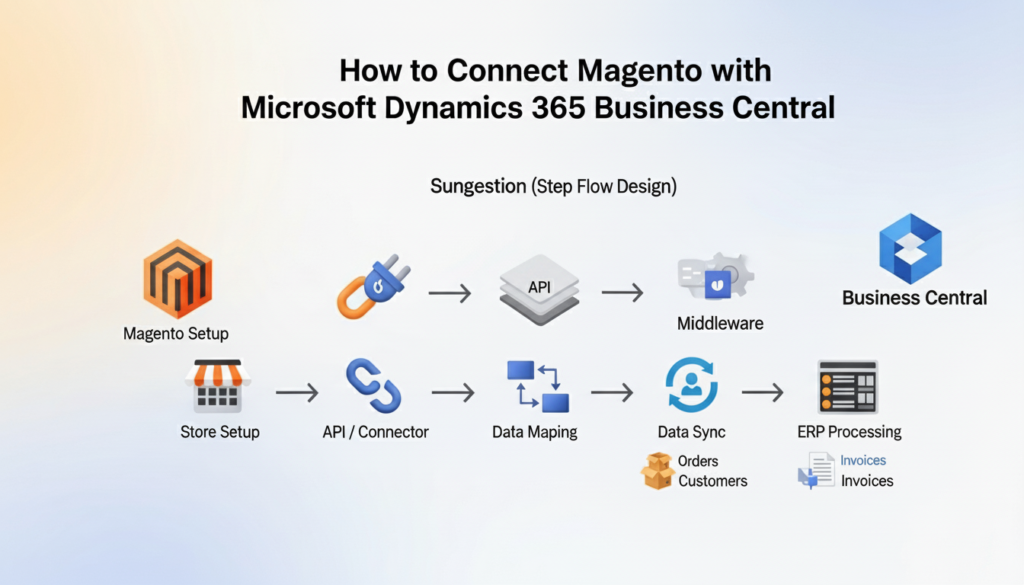
How to Connect Magento with Microsoft Dynamics 365 Business Central Connecting Magento with Microsoft Dynamics 365 Business Central means linking your online store with your ERP system so data flows automatically between both platforms.

Learn how to connect Magento with Microsoft Dynamics 365 Business Central with a step-by-step guide, benefits, methods, and best practices for smooth integration. Managing an online store and backend operations separately often leads to delays, data mismatches, and extra effort. That’s where integration becomes essential. When Magento is connected with Business Central, everything becomes more aligned, from sales to accounting.

Lets discuss guide explains how the connection works, the different methods you can use, and a clear step-by-step process to help you set it up correctly in this article “How to Connect Magento with Microsoft Dynamics 365 Business Central. Whether you’re a small business or scaling fast, this will help you build a reliable system that actually supports growth.

What Does Magento and Business Central Integration Mean?

Magento is an eCommerce platform used to manage products, orders, and customers online. Business Central is an ERP system that handles finance, inventory, and operations. Integration connects these two systems so they share data automatically.

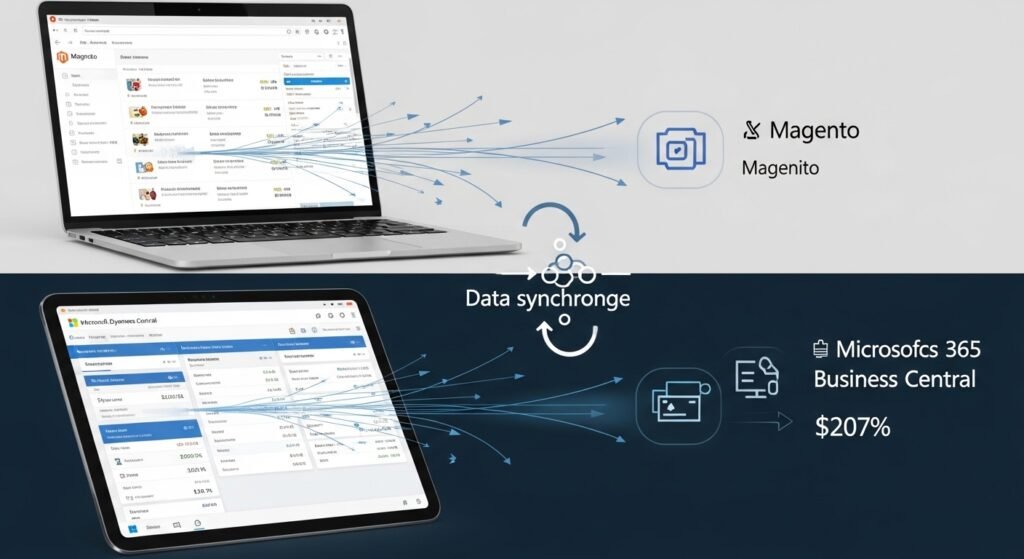
Instead of updating both platforms separately, integration ensures that actions in one system reflect in the other. For example, when a customer places an order in Magento, it appears in Business Central without manual entry.

Connect Magento with Microsoft Dynamics 365 creates a single source of truth, helping teams work more efficiently and avoid confusion.

Why You Should Connect Magento with Business Central

 why-you-should-connect-magento-with-business-central

Running an online business without integration often leads to repetitive tasks and data errors. When systems are Connect Magento with Microsoft Dynamics 365, the workflow becomes smoother and easier to manage.

Before looking at the technical steps, it’s important to understand what you gain from this setup:

  • Orders sync automatically from Magento to Business Central
  • Inventory updates stay consistent across both systems
  • Customer data is centralized and easy to manage
  • Financial records remain accurate without manual input
  • Time spent on repetitive tasks is reduced

These benefits make a real difference, especially when order volume increases.

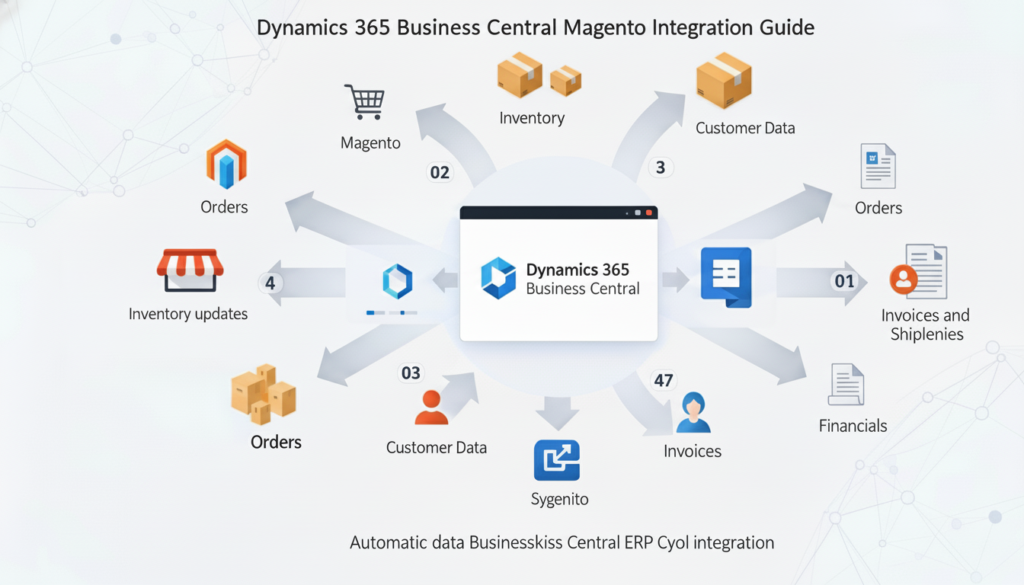
Key Data You Can Sync Between Magento and Business Central

key-data-you-can-sync-between-magento-and-business-central

When you, Connect Magento with Microsoft Dynamics 365 several types of data can move between them. This ensures your business runs on updated and consistent information at all times.

Here’s what typically gets synced:

  • Products and item details
  • Inventory levels
  • Customer information
  • Sales orders and invoices
  • Shipping and tracking details

This data flow keeps your operations aligned without needing constant manual updates.

Methods to Connect Magento with Business Central

There isn’t just one way to Connect Magento with Microsoft Dynamics 365. The method you choose depends on your business needs, budget, and technical setup.

1. Using a Ready-Made Connector

This is the easiest and fastest method. Pre-built connectors are designed to link Magento with Business Central without heavy development work.

They usually offer:

  • Quick setup
  • Standard data syncing features
  • User-friendly interface
  • Lower upfront cost

This option works well for most businesses that want a reliable and simple solution.

2. Custom API Integration

If your business has specific requirements, custom integration using APIs might be the better option. Magento and Business Central both support APIs, allowing developers to build a tailored connection. This method gives you more control but requires technical expertise and time.

3. Middleware Integration

Middleware acts as a bridge between Magento and Business Central. It helps manage data flow, especially when dealing with complex processes or multiple systems.

This option is useful for businesses with advanced workflows or multiple platforms connected together.

Step-by-Step Guide to Connect Magento with Business Central

Setting up the integration may seem technical, but when broken down into steps, it becomes much easier to handle. Below is a clear and practical process you can follow.

Step 1: Prepare Your Magento Store

Before starting the connection, make sure your Magento store is ready. Data should be clean, organized, and properly structured.

Take a few minutes to review the basics:

  • Ensure products and categories are correctly set
  • Remove duplicate or outdated data
  • Enable API access in Magento
  • Check user roles and permissions

This step avoids issues later during the integration process.

Step 2: Set Up Business Central

Now move to your ERP system and prepare it for integration. Business Central should be configured to handle incoming data from Magento.

Focus on the following setup:

  • Configure inventory and item lists
  • Set up customer and vendor records
  • Review financial settings
  • Enable web services or APIs

A properly configured system ensures smooth data flow once connected.

Step 3: Choose the Right Integration Method

At this stage, decide how you want to connect both systems. Your choice depends on your technical skills and business complexity.

To make it easier:

  • Choose a connector if you want a simple and quick setup
  • Go for API integration if you need custom workflows
  • Use middleware if you manage multiple systems

Picking the right method saves time and avoids unnecessary complications.

Step 4: Map Data Between Systems

Data mapping is a critical step. It tells the system how information from Magento matches with fields in Business Central.

Spend time aligning the following:

  • Product fields (SKU, name, price)
  • Customer details (name, email, address)
  • Order structure and status
  • Tax and shipping rules

Accurate mapping prevents data mismatches and errors later.

Step 5: Test the Integration

Before going live, always test the connection. This helps identify issues early and ensures everything works as expected.

During testing:

  • Place test orders in Magento
  • Check if they appear correctly in Business Central
  • Verify inventory updates
  • Review customer data syncing

Testing builds confidence that your system is ready.

Step 6: Go Live and Monitor

Once testing is complete, you can go live. But the work doesn’t stop here. Monitoring is important to ensure everything continues running smoothly.

Keep an eye on:

  • Sync errors or delays
  • Order processing accuracy
  • Inventory consistency
  • System performance

Regular checks help maintain a stable integration.

Common Challenges and How to Avoid Them

Even with a clear setup process, some challenges can appear. Knowing them in advance helps you avoid delays and frustration.

Here are a few common issues and simple ways to handle them:

  • Data mismatch due to incorrect mapping
  • API connection errors
  • Duplicate records in systems
  • Delays in syncing large data

Most of these problems can be avoided with proper planning, testing, and regular monitoring.

Best Practices for a Smooth Integration

A successful integration is not just about connecting systems it’s about maintaining accuracy and reliability over time.

Before wrapping up, here are some practical tips that make a real difference:

  • Keep your data clean and updated
  • Use automation wherever possible
  • Schedule regular system checks
  • Limit manual data entry
  • Work with experienced integration partners

Following these practices helps you get long-term value from your setup.

Make Your Magento and Business Central Work Better Together

To Connect Magento with Microsoft Dynamics 365 the real value comes from how well they support your daily operations. At Business Central Magento, we help businesses bring their eCommerce and ERP systems together in a way that actually makes work easier.

Our team connects Magento with Business Central and other platforms like Shopify and WooCommerce, making sure your products, orders, inventory, and customers stay in sync. We focus on reducing manual effort, avoiding errors, and helping you manage everything from one place. If you want a setup that works reliably and grows with your business, we’re here to help.

Conclusion

To Connect Magento with Microsoft Dynamics 365 Business Central is a practical step for any business looking to simplify operations and reduce manual work. It helps keep your data accurate, improves order handling, and gives you better control over inventory and finances. While the setup may take some planning, the long-term benefits make it worth the effort. If you want a reliable and efficient system, working with an experienced partner like Business Central Magento can make the process much smoother and help you get the most out of your integration. Need help connecting your store and ERP system the right way then contact us? Get clear guidance to set up a smooth and reliable integration Book a Meeting.

FAQ’s

How long does it take to connect Magento with Business Central?

It depends on the method you choose. A connector can take a few days, while custom integration may take a few weeks depending on complexity.

Do I need technical skills to set up the integration?

Not always. Using a ready-made connector usually requires minimal technical knowledge, but custom setups may need a developer.

Can I sync inventory in real time?

Yes, most integrations support real-time or near real-time inventory updates to keep stock levels accurate.

What happens if the sync fails?

Most systems log errors and allow retries. Regular monitoring helps you catch and fix issues quickly.

Is Magento Business Central integration secure?

Yes, when done properly using APIs and secure connections, your data remains protected.

Can I connect multiple Magento stores?

Yes, Business Central can handle multiple stores if the integration is configured correctly. 

How to Connect Magento with Microsoft Dynamics 365 Business Central Read Post »

dynamics-365-business-central-magento-integration
Business Central Magento

Dynamics 365 Business Central Magento Integration Guide

Summary

Dynamics 365 Business Central Magento Integration Guide Integrating Magento with Dynamics 365 Business Central allows businesses to manage orders, inventory, and customer data from a single system. This integration reduces manual errors, speeds up processing, and ensures real-time accuracy.

Learn Dynamics 365 Business Central Magento Integration for seamless inventory, orders, and customer management. Step-by-step guide for efficient ERP eCommerce sync. For businesses running Magento stores, manually managing inventory, orders, and customer data can quickly become overwhelming.

Integrating Magento with Dynamics 365 Business Central centralizes all operations, eliminating errors, duplications, and delays. In this article we will explain how the integration works, its benefits, and the practical steps to implement it. By connecting your ERP and eCommerce platform, you ensure smoother workflows, accurate reporting, and faster decision-making.

What is Dynamics 365 Business Central Magento Integration?

what-is-dynamics-365-business-central-magento-integration

Dynamics 365 Business Central Magento Integration is a process that links your Magento eCommerce store with Microsoft’s ERP system. It allows automatic syncing of products, inventory, orders, shipments, and customer details between the two platforms. Without integration, each update requires manual entry, which is prone to mistakes and delays.

  • Sync products and inventory in real-time
  • Automate order processing from Magento to Business Central
  • Maintain consistent pricing and customer records
  • Generate accurate invoices without manual input

This integration acts as a bridge between your online store and ERP, ensuring that both systems reflect the same data at all times.

Key Benefits of Integrating Magento with Business Central

Connecting Magento to Business Central streamlines operations and offers measurable advantages:

  • Real-Time Data Updates: Inventory and order changes instantly reflect in both systems, reducing stockouts or overselling.
  • Reduced Manual Work: Automated syncing decreases repetitive data entry, allowing staff to focus on strategic tasks.
  • Improved Customer Experience: Orders are processed faster and shipping errors are minimized.
  • Accurate Financials: Invoices and payments are correctly captured in Business Central, improving accounting accuracy.
  • Scalability: Businesses can grow without adding administrative overhead.

These benefits make integration a must for any growing Magento store looking to manage operations efficiently.

How Magento Business Central Integration Works

The Dynamics 365 Business Central Magento Integration generally involves three main components:

  • Connector Setup: A connector or plugin is installed that facilitates communication between Magento and Business Central.
  • Data Mapping: Products, inventory, customers, orders, and invoices are mapped so that each field in Magento corresponds to a field in Business Central.
  • Automation Rules: Rules for syncing data (real-time or scheduled batch) are defined to control how and when updates occur.

For example, when a customer places an order on Magento, the Dynamics 365 Business Central Magento Integration automatically creates a corresponding sales order in Business Central, updates inventory, and triggers invoice generation if configured.

Step-by-Step Guide to Connect Magento to Business Central

Dynamics 365 Business Central Magento Integration othe two platforms involves careful planning and technical setup. Here’s a practical approach:

Step 1. Assess Your Current Systems

Before integration, evaluate your Magento store structure and Business Central setup. Identify:

  • Products and SKUs
  • Inventory workflows
  • Customer data format
  • Order processing rules

This assessment ensures smooth data mapping and avoids conflicts during sync.

Step 2. Choose the Right Connector

Select a connector compatible with your Magento version and Business Central. Popular options include:

  • Third-party Magento ERP connectors
  • Custom API-based integration
  • Middleware platforms that bridge both systems

Each option varies in cost, setup complexity, and flexibility.

Step 3. Configure Integration Settings

Once a connector is selected:

  • Map product categories, SKUs, and pricing
  • Define inventory sync rules (real-time or batch)
  • Set order and invoice handling preferences
  • Connect customer accounts between both systems

This step ensures that every transaction in Magento reflects accurately in Business Central.

Step 4. Test the Integration

Before going live:

  • Run test orders
  • Sync sample products and customers
  • Check if invoices and stock levels update correctly
  • Validate error handling

Testing prevents errors that could disrupt operations or confuse customers.

Step 5. Monitor and Optimize

After launching integration:

  • Regularly monitor data sync logs
  • Adjust sync frequency based on order volume
  • Update mapping as new products or features are added
  • Train staff on how to manage exceptions

Continuous optimization ensures long-term efficiency and accuracy.

Real-Time vs Batch Sync in Magento Business Central

Integration can operate in two modes:

Sync Type How It Works Best For Pros Cons
Real-Time Updates occur immediately when changes happen High-volume stores, time-sensitive inventory Instant accuracy, fewer errors Higher server load, complex setup
Batch Updates occur at scheduled intervals Medium/low volume stores Easier to manage, lower server impact Slight delays, potential overselling

Choosing the right sync mode depends on order volume, operational needs, and technical resources.

Common Integration Challenges and Solutions

While Dynamics 365 Business Central Magento Integration improves efficiency, some challenges may arise:

  • Data Mismatch: Differences in product SKUs or customer details can cause errors. Solution: Perform thorough data cleansing before mapping.
  • Performance Issues: Large stores may experience slow syncs. Solution: Optimize sync frequency and batch size.
  • Order Duplication: Incorrect mapping can create duplicate orders. Solution: Test extensively and monitor logs.
  • Complex Customizations: Highly customized Magento stores may need tailored integration logic. Solution: Use API-based connectors or developer support.

Proper planning and expert support can minimize these challenges.

Why Businesses Choose Business Central Magento Integration

Businesses prioritize this integration to achieve:

  • End-to-end operational visibility
  • Accurate inventory management
  • Streamlined order processing
  • Simplified reporting and accounting
  • Scalability without hiring extra staff

By connecting these two systems, companies gain control over every aspect of their eCommerce operations and ERP processes.

How Business Central Magento Integration Improves Inventory Management

Inventory discrepancies can harm sales and customer trust. Integration helps by:

  • Automatically reducing stock when an order is placed
  • Updating stock levels across multiple warehouses or sales channels
  • Alerting managers when inventory reaches reorder thresholds
  • Generating accurate inventory reports in Business Central

This ensures stock accuracy and helps businesses plan purchases more efficiently.

Streamlined Order Processing with Integration

Orders flow smoothly from Magento to Business Central, eliminating manual entry. Integration allows:

  • Immediate creation of sales orders in ERP
  • Automatic invoice generation
  • Shipment tracking synced with Magento
  • Reduced delays and fewer errors in delivery

This saves time, prevents customer complaints, and enhances operational efficiency.

Recommended Solution: Business Central Magento Experts

For businesses seeking reliable, efficient integration, partnering with a dedicated team simplifies the process. At Business Central Magento, we provide:

  • Full Magento-Business Central integration setup
  • Custom workflows for unique business requirements
  • Ongoing support and monitoring
  • Real-time sync for inventory, orders, customers, and invoices

Our focus is to make your eCommerce and ERP systems work together seamlessly, so you can manage operations without worrying about errors or delays.

Dynamics 365 Business Central Magento Integration Guide

Connect Magento with Dynamics 365 Business Central smoothly to keep orders, inventory, and customer data accurate without extra manual work.

Book a Meeting 

Conclusion

Integrating Magento with Dynamics 365 Business Central simplifies eCommerce operations, ensures data accuracy, and supports business growth. From real-time inventory updates to automated order processing, this connection saves time, reduces errors, and improves customer satisfaction. Businesses looking to scale without adding administrative overhead will benefit greatly from a professional integration setup. Contact US for Partnering with Business Central Magento which ensures seamless synchronization, expert guidance, and reliable support for a smooth, efficient, and fully connected eCommerce and ERP experience.

FAQ’s

Can Magento and Business Central integrate in real-time?
Yes, real-time integration is possible using API-based connectors, ensuring instant updates for orders, inventory, and customer data.
Do I need developer support for integration?
While some connectors are plug-and-play, businesses with custom workflows may require developer assistance for proper mapping and automation.
What data can sync between Magento and Business Central?
Products, SKUs, pricing, inventory, orders, customers, invoices, and shipment details can all sync automatically.
Is Dynamics 365 Business Central Magento Integration suitable for small businesses?
Yes, even small stores benefit from reduced manual entry, accurate stock, and faster order processing.
How often should data sync occur?
It depends on volume high-volume stores benefit from real-time sync, while smaller stores may prefer scheduled batch updates.
Can integration handle multiple Magento stores?
Yes, multi-store setups can be integrated, keeping inventory and orders synchronized across all channels. 

Dynamics 365 Business Central Magento Integration Guide Read Post »

New Wiz Tech, Business Central Magento

Why You Need Business Central Magento Integration by New Wiz Tech

Business Central Magento integration by New Wiz Tech unifies ERP and eCommerce to automate orders, inventory, pricing, and finance for scalable, error-free growth. Orders, inventory, customers, and financial data live in separate platforms, forcing teams to rely on manual processes that cause inventory mismatches, delayed fulfillment, and accounting errors. Business Central Magento Integration solves this problem by unifying Magento with a cloud ERP that centralizes automation and operational control.

By combining Microsoft Dynamics 365 Business Central eCommerce capabilities with Magento, businesses gain real-time visibility, stronger automation, and reliable financial reporting. However, achieving long-term success depends on choosing a custom Magento Business Central integration partner that understands ERP logic, not just storefront connectivity. In this article we are going to discuss in detail “Why You Need Business Central Magento Integration by New Wiz Tech” its pricing, features and support etc.

What Is Business Central Magento Integration?

Business Central Magento Integration connects Magento with Business Central ERP to synchronize orders, customers, inventory, pricing, and finance into a single operational ecosystem. Business Central acts as the system of record for accounting, SKU management, warehouse management, tax rules, and fulfillment, while Magento focuses on storefront experience and conversions.

Magento ERP integration solution uses REST API and OData endpoints with OAuth 2.0 authentication, supported by middleware and accurate data mapping. Real-time synchronization is used for critical processes like orders and inventory, while batch processing handles large datasets efficiently. Standard connectors often break under complexity, which is why ERP integration with Magento must be customized for scale and stability.

Why Choose Business Central Magento by New Wiz Tech

Business Central Magento by New Wiz Tech is built with an ERP-first mindset, ensuring automation aligns with accounting and operations instead of patchwork plugins.

ERP-First Integration Approach

  • Business Central serves as the single source of truth across finance, inventory, and fulfillment
  • ERP-driven logic replaces storefront-controlled data handling
  • Clean data mapping ensures accurate general ledger posting and reporting

Built for Complex & Growing Businesses

  • Supports Magento Business Central integration for B2B pricing and customer-specific rules
  • Advanced multi-warehouse inventory workflows
  • High-volume order automation without performance loss
  • Multi-currency and region-based tax rules for global selling

4. Core Features of Business Central Magento Integration

Business Central Magento Integration delivers end-to-end automation across the entire order-to-cash lifecycle.

Order Management

  • Real-time order sync from Magento to Business Central
  • Automated invoicing and posting to the general ledger
  • Refunds, returns, and credit memos handled cleanly

Inventory & Warehouse Management

  • Accurate SKU management across locations
  • Multi-warehouse synchronization
  • Stock reservations to prevent overselling during peak traffic

Pricing, Tax & Currency

  • ERP-controlled B2B pricing lists
  • Customer-specific discounts and contracts
  • Business Central-driven tax rules and multi-currency support

Customer & Account Sync

  • Centralized customer records across systems
  • Duplicate prevention and clean account data
  • Accurate billing and shipping synchronization

Technical Architecture & Integration Methodology

Business Central Magento Integration by New Wiz Tech is built for enterprise-grade reliability and upgrades.

  • REST API and OData endpoints for secure communication
  • OAuth 2.0 authentication for protected access
  • Middleware-based architecture for flexibility
  • Event-based triggers combined with scheduled jobs
  • Secure, scalable, and upgrade-safe ERP design

Performance, Scalability & Reliability

Designed for scalable eCommerce with Business Central ERP, this integration supports growing product catalogs, high transaction volumes, and seasonal sales spikes. Business Central Magento Integration uses asynchronous processing to manage heavy data loads without impacting storefront speed. Optimized payloads, background queues, and automation workflows ensure consistent performance while maintaining data accuracy across SaaS and on-premise environments.

Pricing Model: Transparent & Scalable

New Wiz Tech offers flexible pricing based on real operational needs rather than rigid connector fees.

What Affects Integration Cost?

  • Business complexity and automation depth
  • Number of entities (orders, SKUs, customers, warehouses)
  • Custom workflows and B2B logic
  • Hosting and environment setup

Pricing Philosophy

  • No forced plugin subscriptions
  • Long-term ROI focused Magento Business Central ERP solution
  • Built to scale without connector limitations

Support & Maintenance by New Wiz Tech

Business Central Magento Integration is supported by ERP specialists, not generic support teams.

Integration health audits to identify performance bottlenecks and sync risks before they impact operations

  • Error log analysis and root-cause resolution to prevent recurring sync failures
  • Safe retry and rollback mechanisms to protect orders, inventory, and financial data
  • Upgrade-safe architecture reviews before Business Central or Magento releases
  • Data consistency checks to ensure inventory, pricing, and customer records remain aligned
  • Performance tuning for high-order volumes during seasonal peaks and campaigns
  • Security reviews for API access and authentication flows
  • Change management support when adding new warehouses, pricing rules, or business units
  • Dedicated staging and testing support for validation before production deployment
  • Clear documentation and knowledge transfer for internal IT and operations teams

Business Benefits of Choosing New Wiz Tech

  • Reduced Manual Work: Automation replaces spreadsheets and manual syncing with ERP-aligned workflows.
  • Accurate Financial Reporting: ERP-controlled posting ensures clean accounting and audit readiness.
  • Faster Fulfillment: Inventory accuracy improves fulfillment speed and customer trust.
  • Better Customer Experience: Consistent pricing, stock visibility, and order updates across channels.
  • ERP-Aligned Automation: No fragile plugins only stable, scalable ERP logic.
  • Future-Proof Scalability: The integration is built to grow with your business, supporting new warehouses and B2B models.
  • Operational Visibility & Control: Centralized dashboards and ERP-driven data give leadership real-time insight into orders and inventory.
  • Lower Long-Term Technology Costs: By eliminating dependency on multiple plugins and manual fixes.

Who Should Use Business Central Magento Integration?

B2B Wholesalers and Manufacturers

B2B wholesalers and manufacturers manage complex pricing structures, customer-specific contracts, and bulk ordering workflows that basic eCommerce setups cannot handle. Business Central Magento Integration allows these businesses to control B2B pricing, credit limits, payment terms, and customer-specific catalogs directly from Microsoft Dynamics 365 Business Central. You can learn more about ” Common Magento Business Central Sync Errors & Fixes“.

Multi-Warehouse Retailers

Retailers operating multiple warehouses need real-time stock visibility across locations to avoid overselling and fulfillment delays. With Business Central Magento Integration, inventory is synchronized at the SKU level across all warehouses, enabling intelligent order routing and accurate stock availability on the storefront.

High-Order-Volume Magento Stores

High-traffic Magento stores processing hundreds or thousands of orders daily require an integration that can scale without performance issues. Business Central Magento Integration supports high-order-volume environments through asynchronous processing, queue-based automation, and optimized data mapping. This ensures fast order synchronization and reliable inventory updates.

Final Thoughts

Business Central Magento Integration is not just a technical setup it’s a growth strategy for modern eCommerce. New Wiz Tech delivers a custom Magento Business Central integration partner experience focused on automation, scalability, and ERP accuracy. Visit our  page to learn why you need Business Central Magento integration, or contact us to build a future-ready ERP integration with Magento. Learn more about “Magento vs WooCommerce for Business Central ERP: Which Integration Is Right for Your Business?”


Why You Need Business Central Magento Integration by New Wiz Tech Read Post »

Business Central Magento

Common Magento Business Central Sync Errors & Fixes

Magento Business Central sync errors happen when data moving between your Magento store and Microsoft Dynamics 365 Business Central fails, arrives twice, or lands with the wrong values. The most common ones hit orders, inventory, prices, customers and the API connection itself. Almost all of them trace back to four causes: field mapping, unique IDs, timing, and API limits.

I’ve worked through a lot of these issues, and the frustrating part is that a sync error rarely announces itself. An order quietly fails to post, a stock number drifts by a few units, or a B2B customer sees the wrong price. By the time someone notices, the cleanup takes longer than the fix. This guide covers each error type, how to find the real cause, and what to change so it doesn’t come back.

If you are still planning your setup, start with the steps to connect Magento with Microsoft Dynamics 365 Business Central, because most errors below come from decisions made on day one. For a wider view of how data should flow between the two systems, the Dynamics 365 Business Central Magento integration guide explains real-time and batch sync in detail.

Why Magento Business Central Sync Errors Happen

Magento Business Central sync errors happen because the two systems store the same business data in different shapes and follow different rules. Magento thinks in websites, store views, SKUs and customer groups. Business Central thinks in companies, locations, item numbers, customer price groups and posted documents. Every field that moves between them needs a clear translation.

Complexity of ERP–eCommerce Integrations

An ERP and a storefront were built for different jobs. Business Central validates everything before it posts: a sales order needs a valid customer, a valid item, a posting group and often a location. Magento accepts an order the moment a customer pays.

That gap is where most failures start. Magento sends an order that looks complete from its side, and Business Central rejects it because one required field is missing or doesn’t match. Common examples I see:

  • A Magento SKU with no matching Business Central item number
  • A shipping method in Magento with no mapped shipping agent in Business Central
  • A payment method that exists in Magento but not in the ERP setup
  • A customer with no general business posting group assigned

None of these are bugs. They are mapping gaps, and they are fixable once you know where to look.

Alt: magento-business-central-integration-errors Name: Common Magento Business Central Sync Errors

Discover common Magento Business Central integration errors, from order and inventory sync to API issues, plus best practices to fix and prevent them. Integrating Magento with Microsoft Dynamics 365 Business Central enables seamless data synchronization across orders, inventory, customers, pricing, and financial records. When implemented correctly, this integration becomes the backbone of modern ERP eCommerce automation, eliminating manual work and improving operational accuracy.

However, due to the inherent complexity of ERP eCommerce environments, Magento Business Central sync errors can still occur especially when integrations are rushed, poorly configured, or insufficiently monitored. In this article we are going to learn the most common Business Central Magento sync problems, along with their root causes and proven fixes.

Real-Time vs Scheduled Sync Conflicts

Real-time sync sends a change as it happens. Scheduled sync sends changes in batches every few minutes or hours. Problems start when both run against the same data.

Picture a stock update scheduled every 15 minutes while orders arrive in real time. A customer buys the last unit at 10:02. The scheduled job, built from a snapshot taken at 10:00, then pushes the old quantity back to Magento at 10:15. For a few minutes, Magento shows stock you no longer have. This is a race condition, and it is one of the main reasons stores oversell even with an integration in place.

The fix is to give each data type one sync method and one direction. Orders flow from Magento to Business Central in real time. Stock flows from Business Central to Magento, ideally triggered by events rather than a fixed clock.

Impact of Poor Configuration

In my experience, configuration causes more Magento Business Central sync errors than code does. The usual suspects:

  • API credentials set up under a personal user account that later gets disabled
  • Field mappings copied from a test company that don’t match production
  • Missing unique IDs, so the connector can’t tell whether a record already exists
  • Business Central job queue entries left On Hold after an update
  • Magento message queue consumers that stopped running

Each of these looks small in setup. Each one can stop data from moving for days if nobody is watching.

Order Sync Errors Between Magento and Business Central

Order sync errors mean an order placed in Magento never appears in Business Central, appears more than once, or arrives with missing lines. They matter most because orders drive fulfillment, invoicing and stock.

Orders Not Syncing to Business Central

When orders stop syncing, check these in order. It saves time to go from the most common cause to the least.

  1. Authentication. Confirm the connector can still sign in to Business Central. Expired secrets and disabled users are the top cause.
  2. The job queue. In Business Central, open Job Queue Entries and look for entries with an Error or On Hold status. Microsoft’s guide to using job queues to schedule tasks explains how to view the log entries, read the error, and set a failed entry back to Ready.
  3. The order itself. Open one failed order and compare each field with what Business Central requires: customer, items, shipping method, payment method, tax area.
  4. Magento’s side. Check that the order reached a status your connector picks up. Some setups only send orders once they are invoiced or set to Processing.

Once the cause is fixed, retry the failed orders from the connector’s log instead of re-entering them by hand. Manual re-entry is how duplicates are born.

Duplicate or Partial Order Records

Duplicates usually come from retries. The connector sends an order, Business Central creates it, but the response times out on the way back. The connector assumes it failed and sends it again. Now there are two.

The standard protection is an idempotency check: before creating an order, the connector looks for an existing Business Central document that carries the Magento order number in a reference field, usually External Document No. If it finds one, it skips the create. Ask your integration partner whether yours does this. If it doesn’t, duplicates will keep appearing under load.

Partial orders, where some lines are missing, usually come from one bad line. A single unmapped SKU can stop the whole order or, worse, let it post without that line. I prefer setups that reject the whole order and log the reason, so nothing ships incomplete.

Inventory Sync Errors and Stock Mismatches

Inventory sync errors in Magento Business Central integrations can quickly lead to overselling, lost revenue, and frustrated customers. Inventory accuracy is especially critical for multi-channel and high-volume stores.

Incorrect Stock Levels in Magento

When numbers don’t match, start by checking what each system is actually measuring. Magento shows salable quantity, which subtracts open order reservations. Business Central shows inventory at a location, which only changes when a shipment or adjustment posts. A gap between the two is normal while orders are open. A gap that stays after orders ship is a real error.

The real errors usually come from:

  • Unmapped locations. A Business Central location that holds stock but isn’t linked to a Magento source.
  • Manual edits in Magento. Someone changes a quantity in the Magento admin, and the next sync overwrites it, or doesn’t.
  • SKU mismatches. Trailing spaces, different cases, or old item numbers that were renamed in one system only.
  • Stalled sync jobs. The stock job stopped and nobody noticed.

The rule that fixes most of this: Business Central owns stock. Magento displays it. Nobody edits quantities in Magento after go-live.

Overselling or Out-of-Stock Issues

Overselling happens when Magento allows a sale for stock that is already committed. The causes are timing gaps and channels Magento doesn’t know about, like phone orders, B2B orders entered in Business Central, or a second storefront.

To reduce it:

  • Send available quantity, not just on-hand quantity. Available means on hand minus open sales orders already in Business Central.
  • Use event-based updates for fast-moving items, so a posted shipment or a new sales order triggers a stock push.
  • Keep Magento’s checkout reservations on, so two shoppers can’t buy the last unit at once.
  • Set a small safety buffer on items that sell across several channels.

If you run more than one storefront, the same rules apply across all of them. That’s where a setup covering several Business Central eCommerce integrations helps, because Magento, WooCommerce and Shopify can all read stock from the same Business Central locations.

Product and Pricing Sync Issues

Product and pricing sync issues mean item details or prices in Magento don’t match Business Central. For B2B stores, wrong prices cause more customer complaints than any other sync problem.

Products Not Updating in Magento

When product changes in Business Central don’t reach Magento, the cause is usually one of these:

  • The item isn’t flagged for web sync in Business Central
  • A required Magento attribute has no mapped source field
  • A custom attribute uses a type the connector doesn’t support, such as a multi-select with values that don’t exist in Magento
  • The item’s category doesn’t exist in Magento yet
  • Magento’s indexers are behind, so the change saved but doesn’t show on the storefront

That last one catches people often. The product data updated correctly, but the storefront still shows the old version. Check the index status in Magento before you blame the sync.

Incorrect Prices or Missing Discounts

Pricing errors almost always come from two systems both trying to be the source of prices. Someone sets a special price in Magento while Business Central holds a different price list. Whichever sync runs last wins.

My approach:

  1. Pick one owner. Business Central should hold base prices, customer price groups and line discounts.
  2. Sync the rules, not just the numbers. A B2B customer’s price comes from their customer group and quantity breaks. Sending one static price per product loses that.
  3. Map customer groups carefully. Each Business Central customer price group needs a matching Magento customer group.
  4. Test as real customers. Log in as a retail customer, a wholesale customer and a guest, and check the same product for each.

Customer and Account Sync Errors

Customer sync errors mean accounts are missing, duplicated or linked to the wrong record. They cause wrong pricing, failed orders and messy reporting.

Missing or Duplicate Customers

Duplicates happen when the connector can’t match a Magento customer to an existing Business Central customer. It creates a new one instead. The fix is a reliable unique key.

  • For B2C: email address is usually the safest key.
  • For B2B: use the Business Central customer number, stored on the Magento company or customer account.
  • For guests: decide upfront whether guest orders go to one generic web customer or create individual records. Mixing both creates chaos.

If duplicates already exist, merge them in Business Central first, then update the mapping so the connector points to the surviving record. Merging without fixing the key just means new duplicates next week.

Address and Tax Data Errors

Address and tax errors stop orders from posting or post them with the wrong tax. Common causes:

  • Country and region codes that differ between systems, such as full state names in Magento and two-letter codes in Business Central
  • Address lines longer than Business Central’s field length, which get cut off or rejected
  • Tax areas in Business Central that don’t match the tax rules in Magento
  • Tax-exempt B2B customers whose exemption is set in one system only

Standardize country, state and tax codes before go-live. Then decide which system calculates tax on web orders. If Magento calculates it, Business Central should accept that amount. If both calculate independently, rounding differences will show up on invoices.

API, Performance, and Timeout Errors

API errors mean the connection itself fails, either because the connector can’t sign in or because Business Central refuses or delays the request. These errors stop everything at once, so they deserve monitoring of their own.

API Authentication Failures

Authentication failures usually start after a change nobody connected to the integration: a password reset, a disabled user, an expired client secret or a new security policy.

To prevent them:

  • Run the integration under a dedicated service principal, not a person’s account
  • Record when each client secret expires and rotate it before that date
  • Alert on repeated authentication failures, not just on the first one
  • Keep the integration user’s permissions limited to what the sync needs

Slow Sync or Timeouts

Business Central online limits how fast and how much any one user can call its APIs. According to Microsoft’s Business Central online operational limits, each user can make 6,000 OData requests in a sliding 5-minute window, with up to 5 requests running at the same time. Go over the rate and Business Central returns HTTP 429, Too Many Requests. An operation that runs longer than 8 minutes times out, and a single batch request can hold up to 100 operations.

That has real consequences during a big catalog update or a sale. A connector that pushes thousands of stock changes one call at a time will hit the limit and start failing. What helps:

  • Batch requests. Group changes into batch calls instead of one request per record.
  • Back off and retry. When Business Central returns 429, wait and retry with an increasing delay instead of hammering it.
  • Send only changes. Sync records that changed since the last run, not the full catalog.
  • Spread heavy work. Run full product syncs outside trading hours.

On the Magento side, much of the integration work runs through message queue consumers. Adobe’s guide to managing message queues explains that the consumers_runner cron job starts them, and by default each consumer processes 10,000 messages and then stops until cron starts it again. If Magento cron isn’t running, those consumers never start, and anything waiting in the queue just sits there. I always check cron early when a sync slows down for no obvious reason.

How to Monitor and Prevent Magento Business Central Sync Errors

The best way to handle Magento Business Central sync errors is to catch them within minutes, not days. A simple monitoring routine does most of the work.

Here is the routine I recommend:

  1. One central sync log. Every record that moves, with its status and error message, in one place you can filter.
  2. Alerts on failure. Business Central’s Set Up Job Queue Notifications guide can notify you when a job queue entry fails, including through a Power Automate flow. Use it.
  3. A daily health check. Count orders placed in Magento versus orders created in Business Central for the same day. They should match.
  4. A weekly stock audit. Compare stock for your 20 fastest-moving items in both systems.
  5. Retest after every update. Business Central and Magento both update regularly. After either one updates, place a test order and run a stock sync before trusting it again.
  6. Document the mapping. Keep a simple sheet of every mapped field, location, customer group and payment method. When something breaks, you’ll know what changed.

Prevention is cheaper than cleanup. One failed order caught in five minutes is a retry. The same failure found after a week is a customer service problem.

When to Use a Custom Magento Business Central Integration

A custom or deeply configurable integration makes sense when a generic connector keeps forcing workarounds. Generic tools handle standard orders, products and stock well. They struggle with anything that doesn’t fit their template.

You likely need more than a generic connector if you have:

  • B2B pricing with customer-specific price lists and quantity breaks
  • Several Magento websites or store views tied to one or more Business Central companies
  • Several warehouses that must each map to a Magento source
  • High order volume that pushes against API limits
  • Custom Business Central fields or processes that must reach Magento

If you are comparing platforms before you commit, the breakdown of Magento vs WooCommerce for Business Central ERP shows where each storefront fits. And if you want to see what a purpose-built option covers, the overview of why you need Business Central Magento integration lists the orders, inventory, pricing, shipment and invoice flows it handles. Budget usually decides the rest, so the published Business Central Magento connector pricing is worth checking against the cost of a custom build.

Frequently Asked Questions

Why are my Magento orders not syncing to Business Central?

The most common causes are expired API credentials, a Business Central job queue entry stuck in Error or On Hold, and order fields that don’t map, such as an unknown SKU, shipping method or payment method. Check authentication first, then the job queue log, then one failed order field by field.

How do I stop duplicate orders between Magento and Business Central?

Duplicates come from retries after a timeout. The fix is an idempotency check: store the Magento order number in a Business Central reference field, such as External Document No., and have the connector check for it before creating an order. Never re-enter failed orders by hand.

Why doesn’t Magento stock match Business Central?

A temporary gap is normal because Magento subtracts open order reservations and Business Central only changes stock when shipments post. A lasting gap usually means an unmapped location, a SKU mismatch, a stalled sync job, or someone editing quantities in Magento. Make Business Central the only system that changes stock.

What does a 429 error mean in a Business Central integration?

HTTP 429 means Too Many Requests. Business Central online limits each user to 6,000 OData requests in a 5-minute sliding window and 5 concurrent requests. The connector should batch changes, sync only what changed, and retry with an increasing delay when it receives a 429.

Should Magento or Business Central own prices?

Business Central should own base prices, customer price groups and discounts, and Magento should display them. When both systems can edit prices, whichever sync runs last wins, which causes wrong prices for B2B customers. Map each Business Central price group to a Magento customer group and test as each customer type.

How can I catch sync errors before customers notice?

Keep one central sync log, turn on job queue failure notifications in Business Central, and compare daily order counts between Magento and Business Central. Add a weekly stock check on your fastest-selling items and retest after every update to either system.

Final Thoughts

Magento Business Central sync errors are almost never random. They come from mapping gaps, missing unique IDs, timing conflicts and API limits, and each one has a clear fix. Give every data type one owner and one direction, watch the job queue and message queues, and catch failures within minutes.

Do that, and the integration fades into the background where it belongs. If you’d rather have a team set it up and watch it for you, our Business Central Magento connector was built for exactly these flows, and you can contact us to talk through your setup.

Common Magento Business Central Sync Errors & Fixes Read Post »

Business Central Magento

Magento vs WooCommerce for Business Central ERP: Which Integration Is Right for Your Business?

Magento vs WooCommerce becomes a critical comparison as eCommerce businesses grow and managing operations across disconnected systems becomes increasingly difficult. Orders, inventory, customers, pricing, and accounting data often sit in different tools, creating delays, errors, and manual work.  Many companies use Microsoft Dynamics 365 Business Central as a cloud ERP to manage finance, inventory, warehouse management, and the general ledger.
When connecting an online store to this cloud ERP, two platforms dominate the conversation Magento vs WooCommerce.

Choosing the wrong platform for ERP integration with Business Central can limit scalability, increase costs, and slow automation. This guide explains Magento vs WooCommerce for ERP integration so you can decide which approach Magento vs WooCommerce supports your growth, performance, and long-term ERP strategy.

Understanding Business Central ERP Integration

Understanding Business Central ERP Integration starts with knowing how Microsoft Dynamics 365 Business Central connects your eCommerce store with finance, inventory, and operations. ERP integration ensures that data flows automatically between systems, reducing manual work and improving accuracy across the business.

What Is Microsoft Dynamics 365 Business Central?

Microsoft Dynamics 365 Business Central is a SaaS-based cloud ERP that centralizes accounting, purchasing, sales, inventory, tax rules, and financial reporting. It can run in the cloud, hybrid, or on-premise environments and acts as the system of record for business operations.

Why ERP Integration Is Critical for eCommerce

Without ERP integration, eCommerce teams rely on manual updates or batch processing. A proper Business Central ERP for eCommerce platforms ensures real-time synchronization between systems, improving accuracy and fulfillment speed.

Core Integration Objectives

Most Microsoft Dynamics 365 Business Central eCommerce projects focus on:

  • Order synchronization
  • Inventory and warehouse management
  • Customer data and B2B pricing
  • Financial posting to the general ledger

From a technical view, integration uses REST API or OData endpoints, OAuth 2.0 authentication, middleware, and accurate data mapping.

Overview of Magento for Business Central ERP

Magento is an enterprise-grade eCommerce platform designed for businesses that need scalability, flexibility, and deep system integration. When connected with Microsoft Dynamics 365 Business Central, Magento enables advanced ERP-driven workflows for inventory, pricing, orders, and finance. This makes Magento a strong choice for companies managing complex catalogs, B2B operations, and long-term growth through Business Central ERP integration.

What Is Magento (Adobe Commerce)?

Magento is an enterprise-grade eCommerce platform built for complex catalogs, multi-currency pricing, and advanced B2B workflows. It is widely used by businesses that require scalability and customization.

Why Magento Works Well with Business Central

Magento Business Central integration supports deep ERP logic, making it ideal for complex operations. Magento connects with Business Central using REST API and middleware to support real-time synchronization.

Common Magento Business Central Integration Use Cases

  • Magento Business Central B2B integration with customer-specific pricing
  • Multi-warehouse inventory synchronization
  • Large SKU catalogs and complex fulfillment rules

Integration Approach

ERP integration with Magento typically involves:

  • REST API and OData services
  • Secure OAuth 2.0 authentication
  • Custom data mapping and middleware

Overview of WooCommerce for Business Central ERP

What Is WooCommerce?

WooCommerce is a WordPress-based eCommerce platform built to help small and mid-sized businesses sell online with minimal technical complexity. It operates as a plugin for WordPress, making it a popular choice for companies already using WordPress for content management. WooCommerce is well suited for simple to moderately sized product catalogs and businesses that want to launch quickly without heavy development effort.

Strengths of WooCommerce

One of WooCommerce’s biggest advantages is its fast setup and low upfront cost compared to enterprise eCommerce platforms. Store owners benefit from a familiar WordPress interface, which reduces the learning curve for content and product management. WooCommerce Business Central integration is commonly used for basic ERP requirements such as syncing orders, products, customers, and inventory.

Typical Integration Scenarios

ERP integration with WooCommerce often relies on:

  • Plugins and third-party connectors
  • Middleware for data exchange
  • Limited use of REST API

This approach works for simple workflows but exposes WooCommerce ERP limitations as business complexity grows.

Magento vs WooCommerce: Core ERP Integration Differences

  • Platform Architecture: Magento is modular and scalable, while WooCommerce depends on WordPress plugins, which can restrict customization.
  • Integration Flexibility: Magento supports advanced ERP logic and custom workflows. WooCommerce provides limited control over pricing, inventory logic, and tax rules.
  • Data Synchronization: Magento enables real-time synchronization for orders and inventory. WooCommerce integrations often rely on batch processing, causing delays for high-volume stores.
  • Upgrade & Version Compatibility: Magento ERP integrations are typically designed with long-term version stability in mind. WooCommerce integrations are more sensitive to WordPress and theme.
  • Customization Ownership: With Magento, businesses own the integration logic and can extend it as ERP needs change. WooCommerce integrations often depend on plugin vendors.

Inventory & Order Management

Effective inventory and order management are critical when integrating an eCommerce platform with Business Central ERP. Magento offers strong support for real-time inventory synchronization from Business Central, ensuring stock levels are always accurate across all sales channels. It also provides built-in visibility for multi-warehouse inventory, making it easier to manage stock across multiple locations. Orders placed on Magento flow automatically into Business Central, triggering inventory updates, invoicing, and accounting entries without manual effort.
This level of automation helps reduce errors and speeds up fulfillment. WooCommerce can also sync orders and inventory with Business Central, but it often relies on third-party plugins or connectors. Managing multiple warehouses, advanced fulfillment workflows, and real-time updates usually requires additional customization.

Performance & Scalability

Magento is designed for scalable eCommerce with Business Central. It handles large SKU catalogs, high order volumes, traffic spikes, and seasonal sales efficiently in cloud ERP environments. WooCommerce performs well for small stores but can face performance bottlenecks as data volume and ERP complexity increase.
Magento for Scalable eCommerce with Business Central

  • Handles high traffic smoothly
  • Supports large product catalogs
  • Built for complex ERP workflows

WooCommerce Scalability Considerations

  • Performance depends on hosting
  • Plugin conflicts can slow sites
  • Struggles with very large catalogs

Cost Comparison

Magento Costs

  • Higher development cost
  • Advanced hosting requirements
  • Ongoing maintenance and optimization

WooCommerce Costs

  • Lower startup cost
  • Plugin and connector fees
  • Hidden costs as traffic and complexity grow

Which Platform Is Right for You?

Choose Magento if you need:

  • Enterprise or B2B functionality
  • Complex ERP workflows and pricing
  • Multi-warehouse inventory management
  • Long-term scalability

Choose WooCommerce if you need:

  • A solution for small businesses
  • Simple catalogs and workflows
  • Lower upfront cost
  • Faster deployment

If you’re asking which is better Magento vs WooCommerce for Business Central, the answer depends on complexity, scale, and growth plans.

Real-World Example

A growing online retailer integrates Business Central with Magento and gains real-time inventory, automated pricing, and scalable ERP automation. The same retailer using WooCommerce achieves faster setup but struggles as order volume, B2B pricing, and warehouse management become more complex.

Feature Comparison for Business Central ERP

Inventory & Warehouse Management

  • SKU-level inventory tracking
  • Multi-warehouse synchronization
  • Automated stock updates

Magento handles complex inventory better, while WooCommerce works for simpler needs.

Pricing, Tax & Currency

  • B2B pricing rules
  • Customer-specific price lists
  • Multi-currency support
  • ERP-driven tax rules

Magento offers deeper pricing control, while WooCommerce relies on plugins.

Orders, Fulfillment & Finance

  • Order lifecycle synchronization
  • Invoicing from Business Central
  • Posting to the general ledger
  • Returns and refunds handling

Magento supports more complex financial workflows.

Conclusion

Magento vs WooCommerce both support Business Central ERP integration, but they serve very different business needs. Magento is built for complex, growing organizations that require deep ERP control and scalability. WooCommerce is better suited for smaller businesses with simpler requirements. When choosing between Magento vs WooCommerce for Business Central ERP, focus on long term growth, ERP complexity, and operational scale not short-term convenience. To explore the best integration approach for your business, visit our  page or contact us for expert guidance.

Magento vs WooCommerce for Business Central ERP: Which Integration Is Right for Your Business? Read Post »

Scroll to Top